Designed for focus: why we left out the floating button
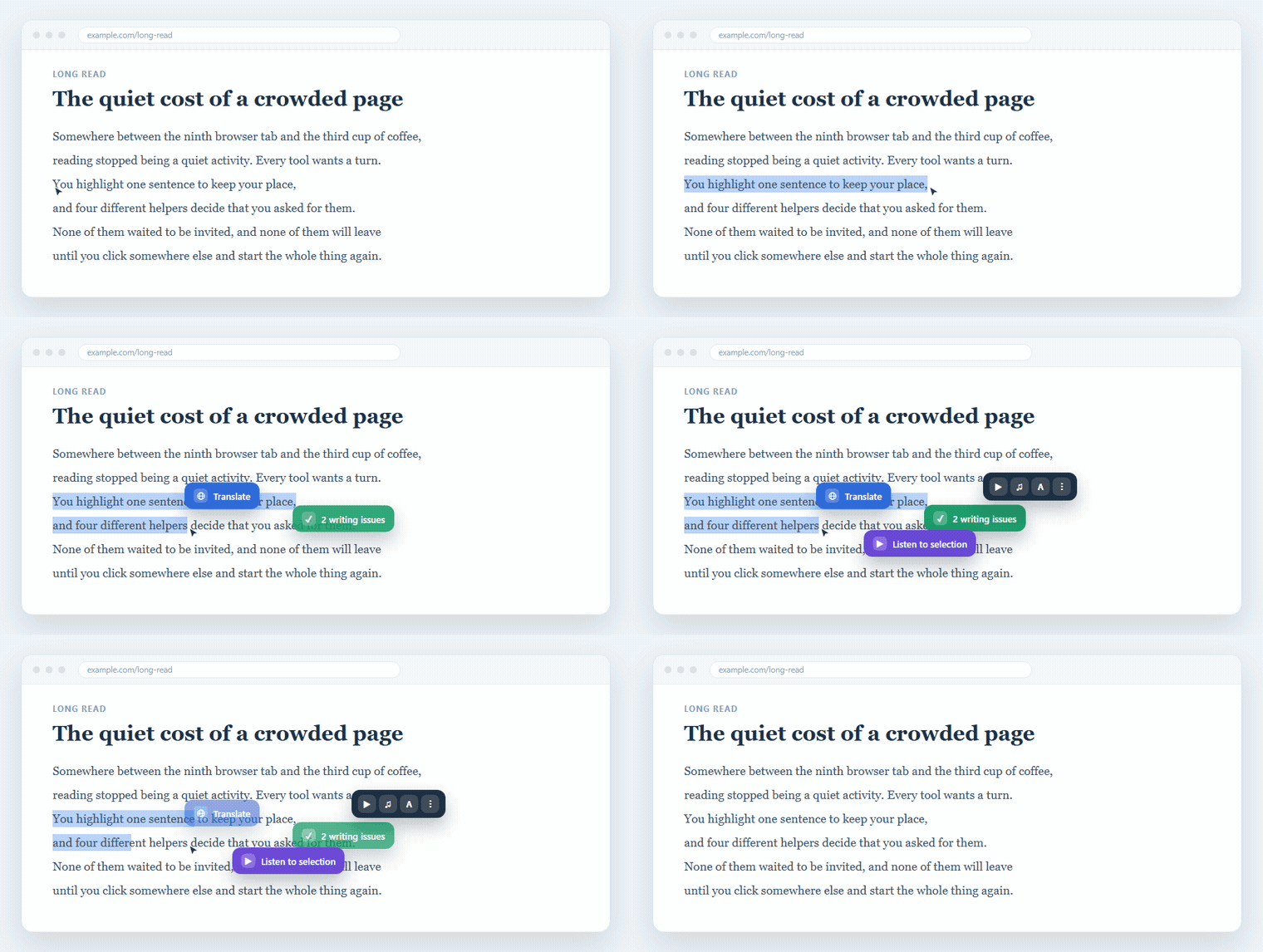
If you read for work or for study, you know the pattern. You highlight a paragraph, to copy it or just to keep your place, and the page stops being yours. A translation bubble pops up. A grammar checker slides in. A little speaker icon parks itself over the sentence you were halfway through.
Plenty of text-to-speech extensions treat that instant pop-up as their headline feature. We took the opposite view. Readalix leaves it out on purpose, because a reading tool that interrupts your reading has already lost the argument.
What a pop-up button really costs
A tool you keep installed for years has to earn its place on every page you open. Injecting a floating control on every single selection buys a little convenience and charges a great deal for it:
- It guesses wrong about what you meant.Most selections have nothing to do with speech. You are copying a line, deleting a word, or dragging the cursor along so your eyes don’t slip a row. Reading every highlight as “please say this out loud” is a guess that is wrong far more often than it is right.
- It covers the thing you were reading.A floating icon has to land somewhere, and somewhere is usually on top of the next sentence, the link you were going for, or the button you were about to press.
- It starts a turf war.Add a grammar checker, a dictionary and a translator, and four extensions end up fighting over the same few hundred pixels beside your cursor, each one watching every selection you make and painting its own layer over the page.
A reading tool should read when it is asked
The rule we build to is a plain one: do nothing until you ask, and leave nothing behind when you don’t. Readalix never bolts a toolbar onto the page, never sprinkles little play buttons beside every paragraph, and never rewrites a site’s markup to make room for an interface of its own. The page you were reading stays the page you were reading.
Even the highlighting keeps its hands off. The glowing sentence, and the word lighting up exactly as it is spoken, are painted with the browser’s CSS Custom Highlight API: no wrapper elements, no rewritten markup, and nothing left in the page once the voice stops.
Four calmer ways to press play
Because nothing appears uninvited, starting a read is something you do deliberately, in whichever of these four ways suits the moment. Not one of them alters the page you are on:
- The element pickerArm it from the toolbar and your cursor becomes a pointer. Hover any paragraph, click, and Readalix reads from there to the end of the page. Nothing to select, nothing to drag.
- The right-click menuSelect some text, right-click, and choose Read with Readalix. It is Chrome’s own menu, already on every page, and it costs nothing until you open it.
- A keyboard shortcutCtrl + Alt + R starts, pauses and resumes without your hands leaving the keys. If that chord is already taken, record another one in Settings → Shortcuts.
- The toolbar popupVoice, language and reading speed live in the extension’s own popup, outside the page entirely. Press play there with nothing selected and Readalix finds the article on the page and reads that, with no selection needed at all.
Readalix is built for focus, and that work starts well before you press play: your page is left exactly as you found it until the moment you ask for a voice.
Hear this page in a natural voice
Readalix is free, needs no account, and its on-device voices never send your text anywhere.
Add to Chrome