Readalix for Windows
Readalix for Windows brings the same reading to the rest of your computer: Word, Notepad, PDF readers, email and most other apps. Same toolbar, same voices, and the same word-by-word highlight as the extension.
Get it
It is free in the Microsoft Store, for Windows 10 and 11. Once it starts, the toolbar appears and Readalix waits in the tray, so the read shortcut works in any app.
Get Readalix for Windows from the Microsoft Store
Read in any app
- Select text in any app and press Ctrl+Alt+R, or ▶ on the toolbar. With nothing selected, it reads on from the cursor.
- To start from a paragraph, press Ctrl+Alt+E and click it.
- To hear words in a picture, a scan or a video, press Ctrl+Alt+S and drag a box over them.
The sentence and the word light up right where they are on screen as they are spoken. The arrow keys skip to the next or previous sentence, and Esc stops.
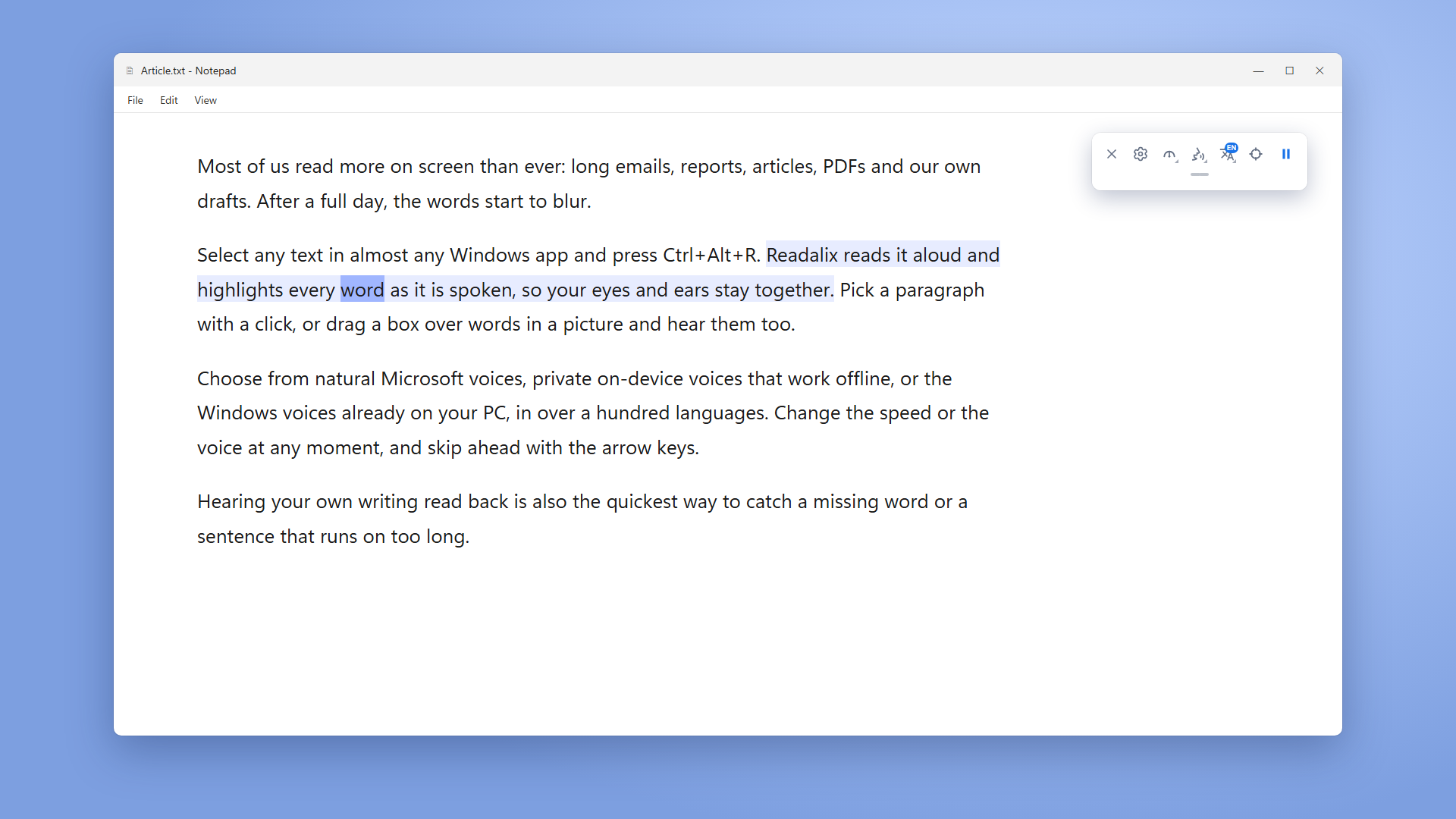
The toolbar
Speed, voice and language work as they do in the extension, and the handle under the toolbar opens a second row with Snip & read, Dictate and Save as audio. Drag the toolbar by any empty spot to move it.
The X hides the toolbar, and Readalix keeps working from the tray. Click its tray icon to bring the toolbar back, or right-click it for Settings and Quit.
Together with the extension
When the Readalix extension is in Chrome or Edge on the same PC, the two link up by themselves, with nothing to set up. Press the read shortcut in a browser tab and the extension reads it right in the page, so Google Docs, Word Online and PDFs read properly. Every other app is read by Readalix for Windows, and only one of them speaks at a time.
Prefer the app to read browser tabs too? Open Settings, General and switch off Read browser tabs with the Readalix extension.
One Premium for both
Microsoft voices are free for a daily allowance, and the Windows voices are always free. One Premium purchase covers the app and the extension: in the app, open Settings, Premium, choose Already bought? Sign in and use the email you paid with.
Your text stays yours
Readalix never keeps or sends us the text it reads. Microsoft voices send each sentence to Microsoft to be spoken, while the on-device voices and the Windows voices work offline, on your PC.