Getting started
Five minutes from an empty toolbar to a page reading itself out loud. Nothing to sign up for, and no settings to fill in first.
Install it
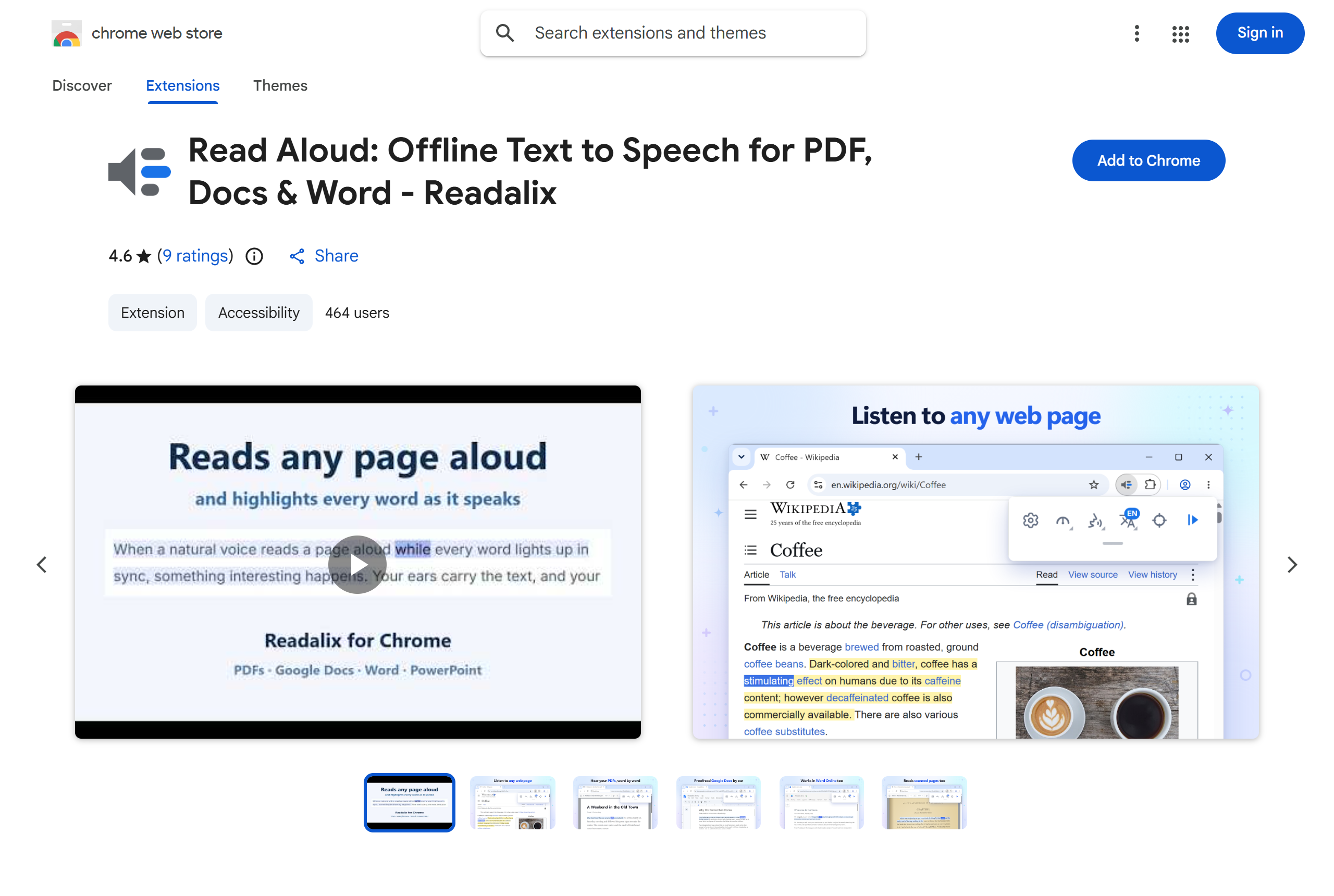
- Open the Readalix listing in the Chrome Web Store.
- Press Add to Chrome, then Add extension in the confirmation box.
- That is the whole install. There is no account, no sign-in and no onboarding tour.
Pin it
Chrome hides new extensions behind the puzzle-piece icon. Readalix is worth one click rather than two, so pin it:
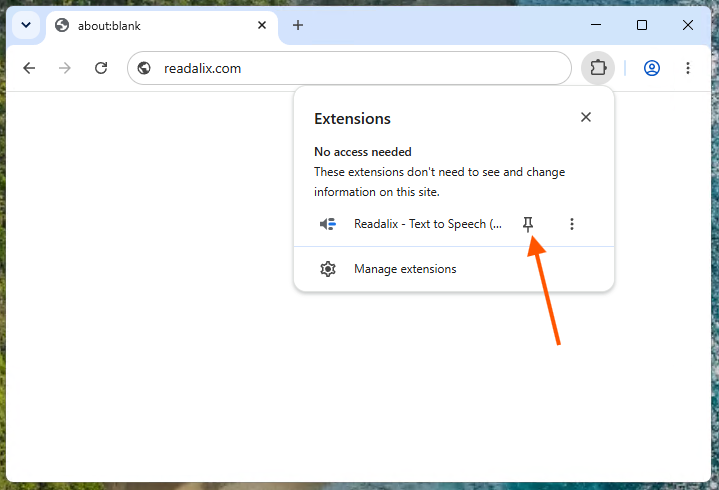
- Click the puzzle piece at the right of the address bar.
- Find Readalix in the list and click the pin beside it.
- Its icon now sits in the toolbar, and clicking it opens the reading toolbar.
Your first read
- Open any article.
- Select a paragraph with the mouse.
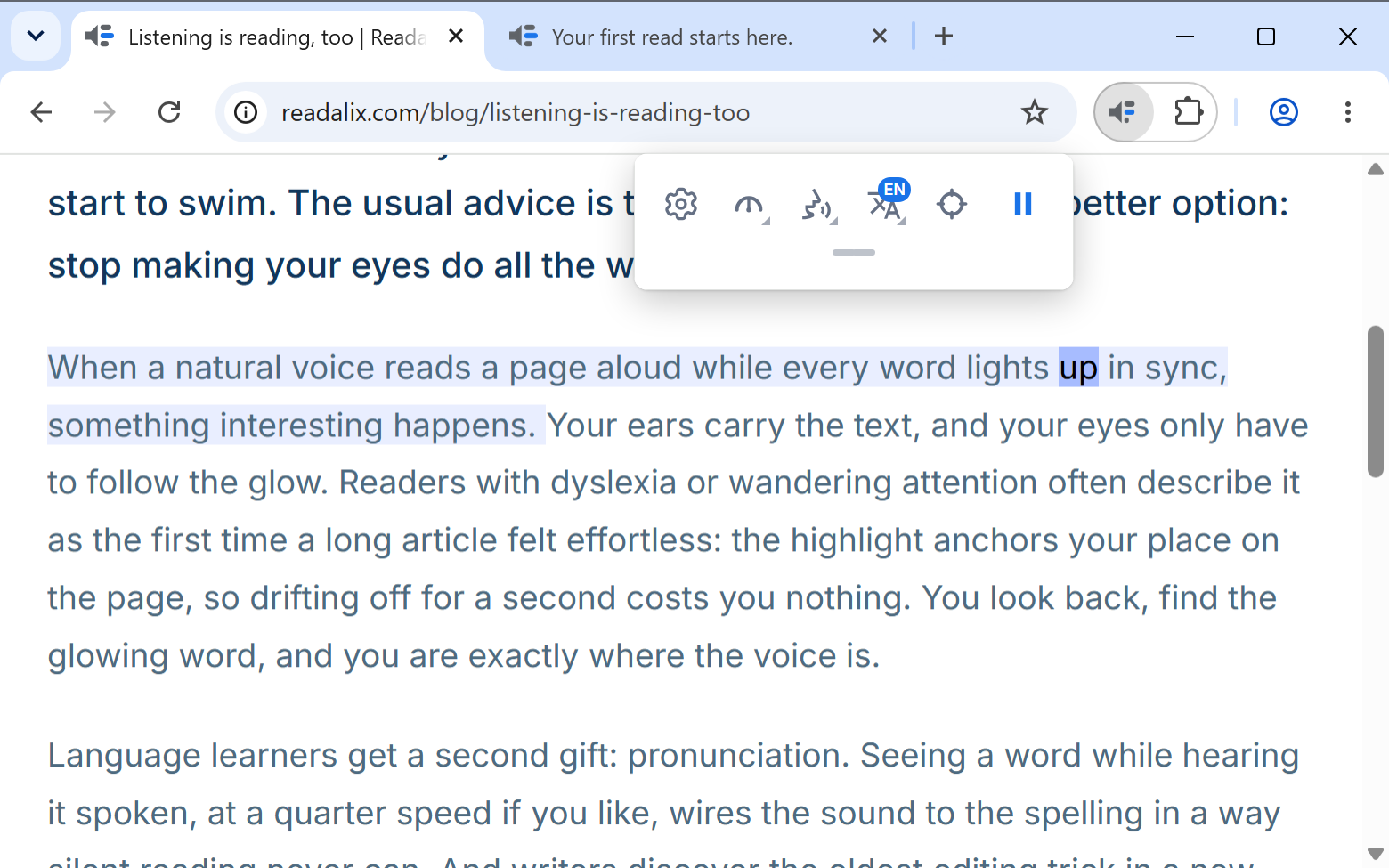
- Click the Readalix icon, then press the big play button at the right end of the toolbar.
A voice starts reading. The sentence being read takes a soft tint, and inside it the word being spoken lights up, so your eye always knows where the voice is.
You do not have to select anything. Press play with nothing selected and Readalix looks for the article on the page, skipping menus, sidebars and footers, and reads that instead. Reading any page covers the rest of the ways in.
The toolbar, button by button
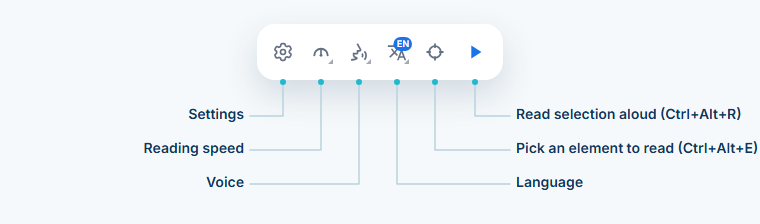
Clicking the icon opens a row of round buttons, and the small handle under it opens a second row with four more. From the right:
- Play, pause, resumeThe big one. It reads, freezes on the exact word when you pause, and picks that same word up again when you resume.
- Pick an elementArms a pointer: hover a part of the page, click it, and the read starts there.
- LanguageWhich language the text is in. The corner badge shows the code, and the tooltip spells the language out.
- VoiceEvery voice available for that language, grouped by where it comes from. Its badge is tinted by source, so a glance tells you whether you are on a browser voice or a neural one.
- Reading speedFrom a slow crawl up to 3x, changeable while it is speaking.
- SettingsThe gear at the left end. It opens the full settings view in place.
- Snip & readIn the second row. Drag a box over words the page does not hold as text, such as a picture or a video frame, and hear them. See Reading any page.
- DictateIn the second row. Speak, and your words are written down in the toolbar, ready to copy. See Dictation.
- Save as audio or videoIn the second row. Turns what play would read into a file. See Saving audio and video.
- Open a PDFIn the second row. Opens a file from your computer in the Readalix PDF reader. See PDFs and documents.
A small triangle in a button's corner means it opens a menu; the others act at once. Both rows are yours to arrange: press the six-dot grip at the end of the second row, drag any button along its row or into the other one, and press the check to keep it. Esc puts everything back as it was. Right-click a button for Run automatically and, once you have moved something, Reset the order. The same editor is in Settings, Toolbar.
What it costs
The voices already installed in your browser are free, with no limit and no counter. Every other voice (Microsoft, Piper, Kokoro, Supertonic, your own voices, Gemini, OpenAI, ElevenLabs) shares a free allowance of 20,000 characters a day, which is roughly 22 minutes of speech. When that runs out reading does not stop: it carries on in a browser voice from the next sentence, and the allowance is back the next day.
Removing the daily limit costs $15 a year, or $40 once. The Premium section of the settings holds both, and a small meter there shows how much of today's allowance is left.