Reading any page
There are five ways to tell Readalix what to read, and which one you reach for depends on how much of the page you want.
What you selected
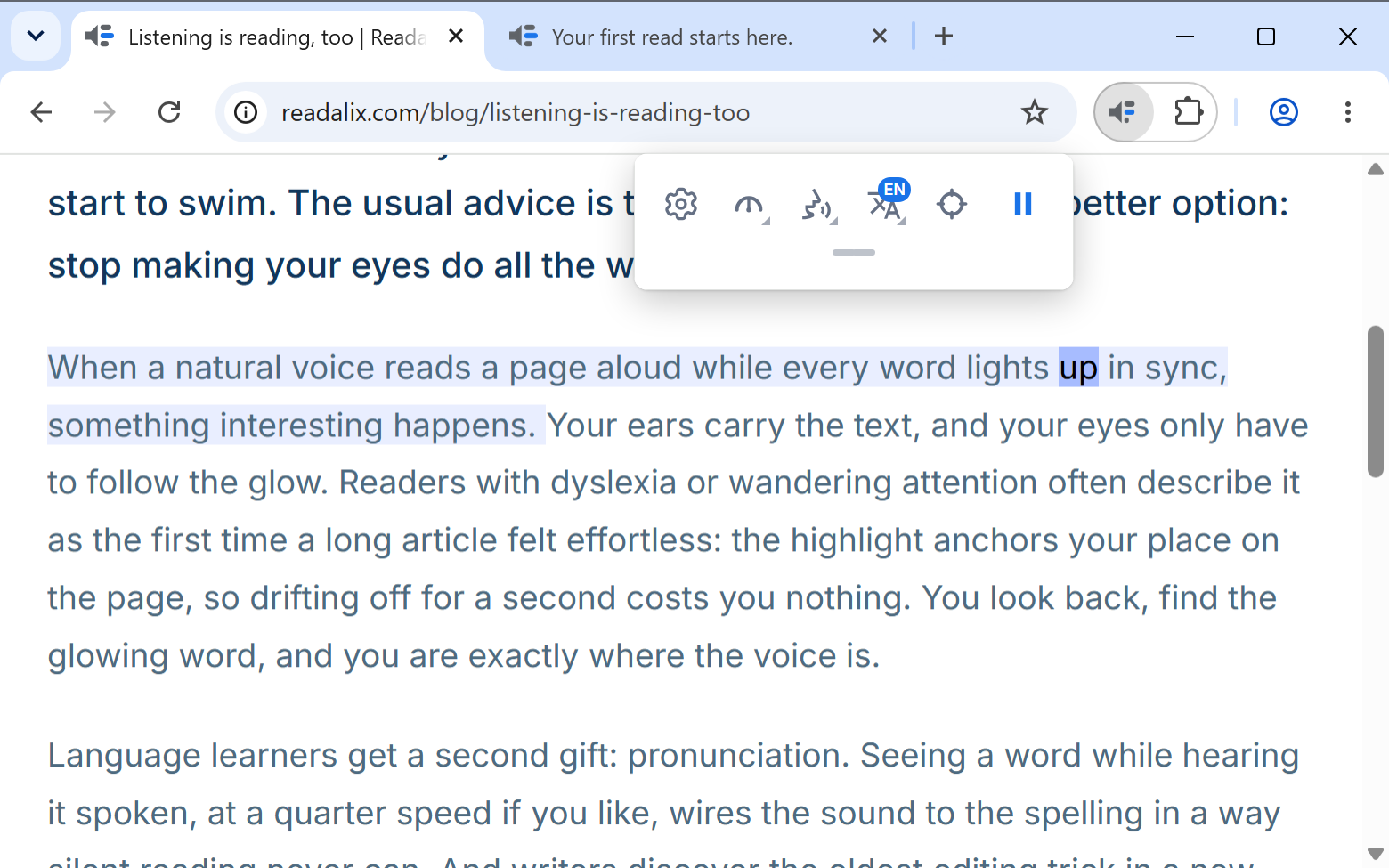
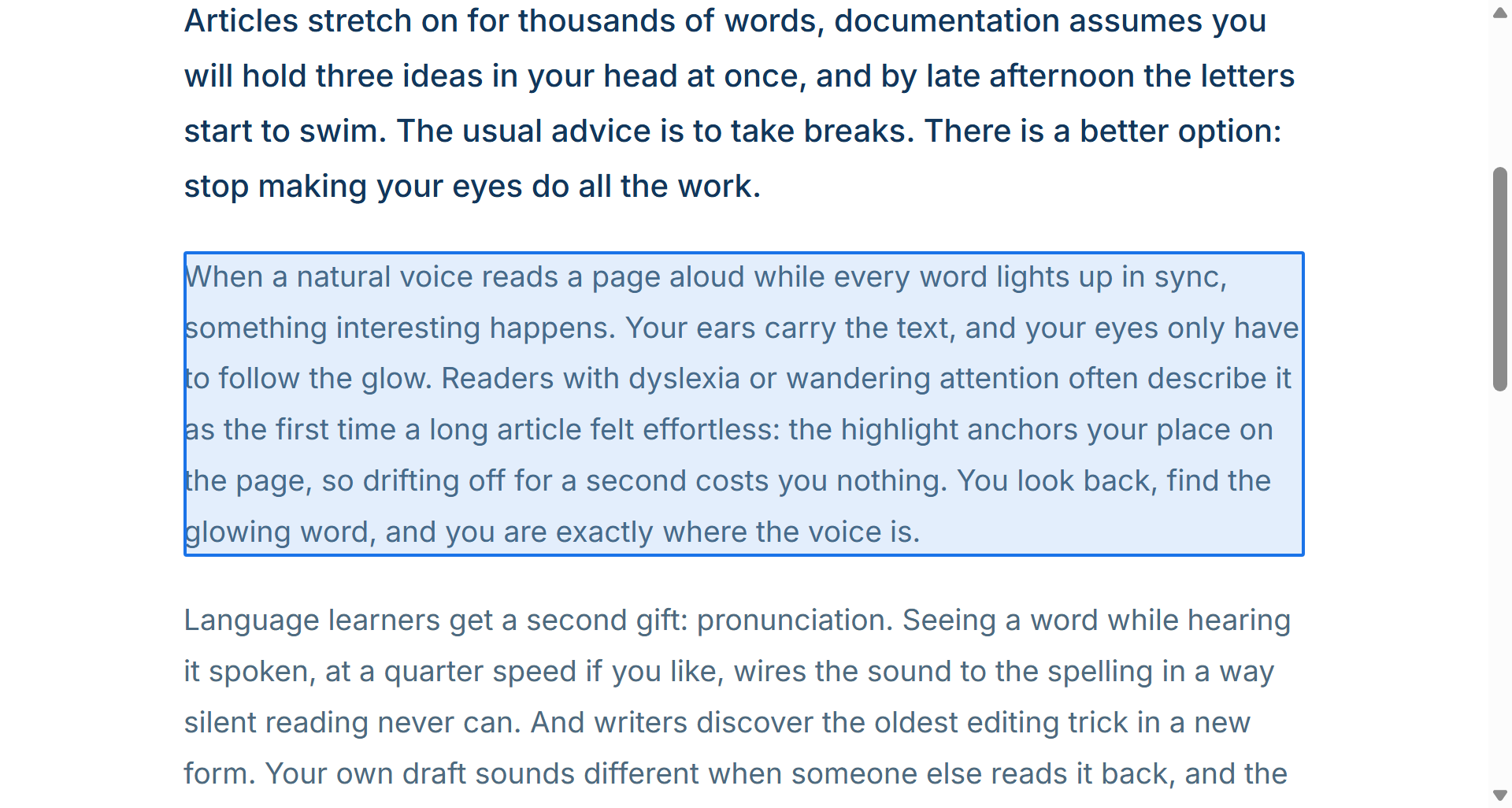
Select text, open the toolbar, press play. This is the case the extension is built around: it reads what you chose, in the order you chose it, and stops at the end of the selection.
The selection can span several paragraphs, a table cell, a list, or a single line. It can also sit inside an iframe, a shadow DOM component or a web app shell. Whichever frame owns the selection is the one that speaks.
The whole article
Press play with nothing selected and Readalix looks for the article container on the page and reads that: the headline and the body, without the navigation, the sidebar, the cookie bar or the footer.
It looks inside large frames as well as the top document, because plenty of apps render their whole page inside one big iframe. Small frames are ignored on purpose, so an ad slot or a chat widget never ends up speaking for the tab.
On a page built from plain nested boxes, with nothing that looks like an article at all, the body of the page is read instead, minus the layout wrappers around it. Only a page with almost no text asks you to select something first.
From a point you pick
Sometimes the part you want is not an article and not worth dragging over. Use the picker:
- Press the pick button in the toolbar. The toolbar stays open, so you can still change voice or speed first.
- Move the pointer over the page. Whatever is under it is marked, inside an embedded frame as well as on the page itself, so you can see exactly what a click would take.
- Click. The read starts at that element and runs to the end of the page.
If you would rather it read only the element you clicked and then stop, turn on Read only the picked element, which lives in the pick button's own options in Settings, Toolbar. Press Esc to disarm the picker without reading anything.
Snip & read
For words the page does not hold as text (a picture, a chart, a video frame, a button drawn as an image), press Snip & read in the toolbar’s second row, or Ctrl+Alt+S, and drag a box over them. Readalix recognises the words inside the box and reads them aloud; you can then select and copy them. Esc cancels.
To read one picture, right-click it and choose Read the words in this picture. The recognition runs on your computer: the first time, Readalix downloads its text-recognition model once, and nothing you snip leaves your device.
Chrome’s own PDF viewer keeps the keyboard to itself, so the shortcut may not reach Readalix there. To snip a PDF by keyboard, give Snip an area to read a key of its own at chrome://extensions/shortcuts: Chrome then hears it on every page, PDFs included.
Form fields and iframes
A text box counts as text. Select inside a search box, a comment field, a textarea or a rich-text editor and press play, and Readalix reads the value, not the page around it. This is the fastest proofread there is for something you have just written. Password fields are the exception: they stay silent unless you allow them in Settings, General.
Content inside iframes works the same way, which is what makes embedded documents, help widgets and app shells readable.
The right-click menu
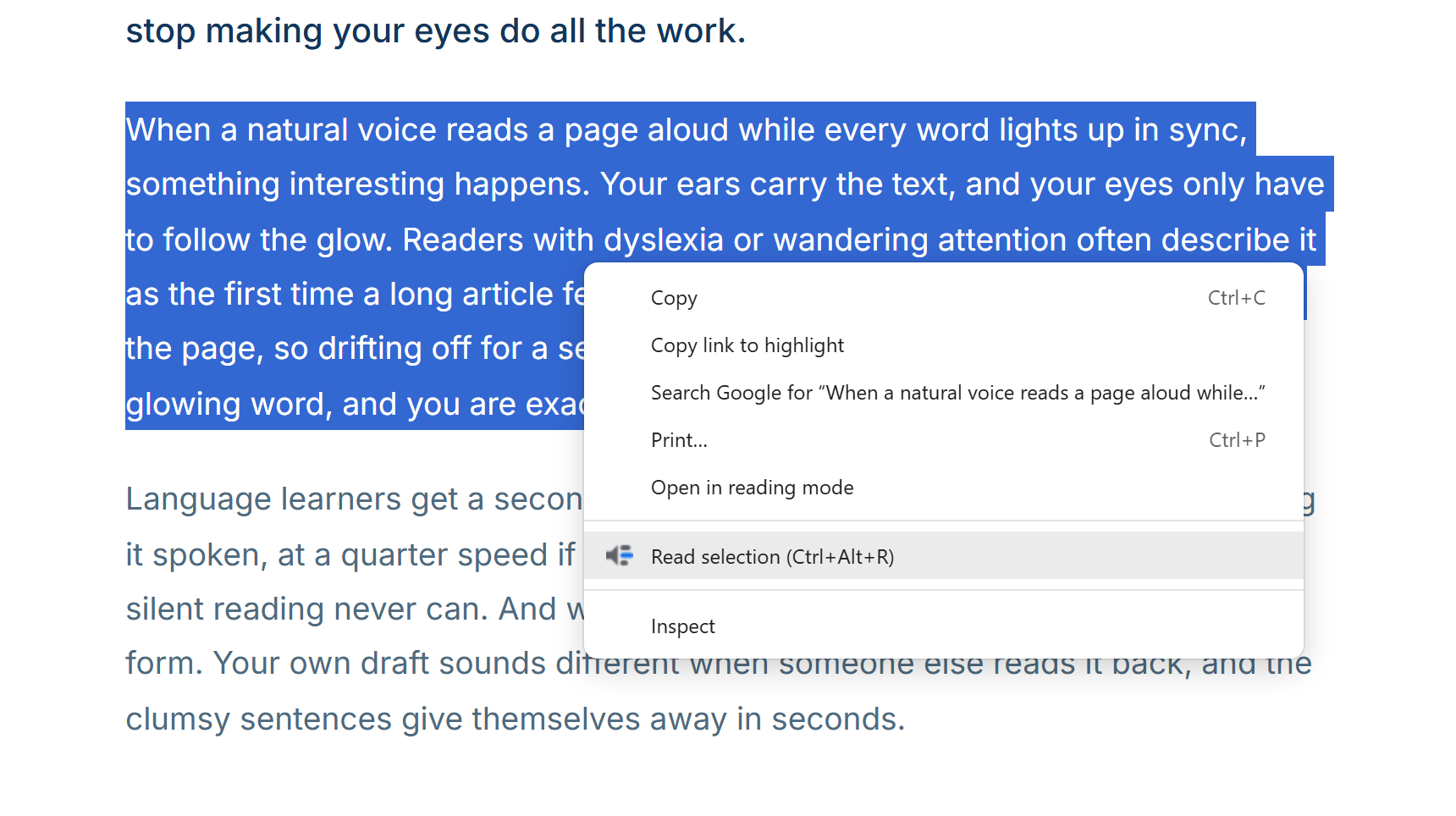
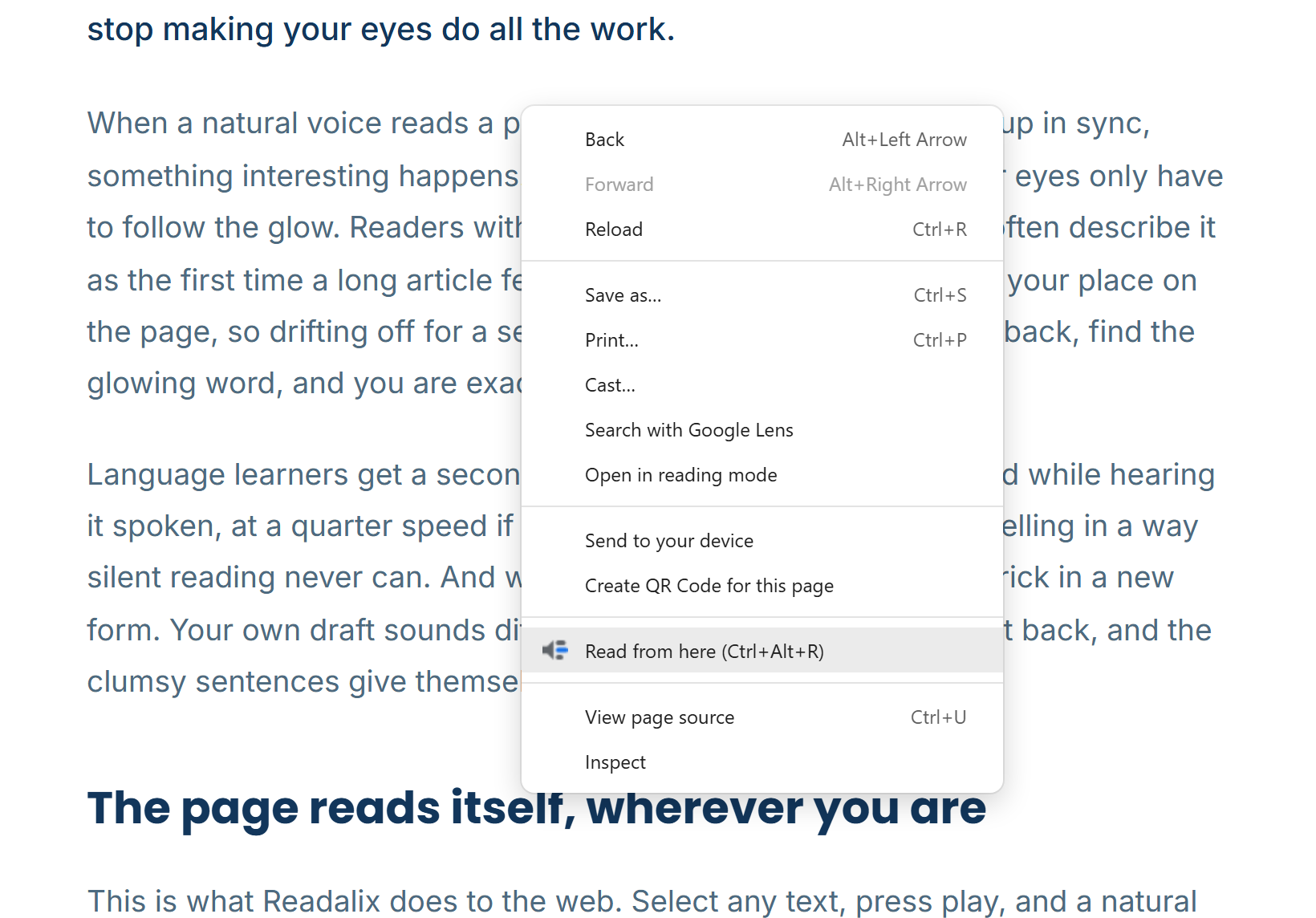
Readalix adds a single item to Chrome's context menu, and that item renames itself to match whatever you right-clicked:
- Read selectionYou right-clicked inside a selection.
- Read this input, or Read this textareaYou right-clicked a form field.
- Read thisAn editable area, such as a rich-text editor.
- Read from hereAnywhere else on the page. Reading runs from that spot to the end, or reads just that element if you turned that setting on.
- Read with ReadalixYou right-clicked a PDF, in the browser's own viewer or inside a web page. With text selected it reads that text; with nothing selected it opens the PDF in the Readalix reader and reads the whole document from its first page.
The item also shows your read shortcut, so you stop needing the menu soon enough.
Stopping
Click anywhere on the page, or press Esc. Both stop the read where it is, and pressing your read shortcut again toggles it off. Pausing instead of stopping keeps your place: see Playback controls.