Dictation
Press the microphone, speak, and Readalix writes down what you say. Fix a word, copy the text anywhere, or clear it and start again. It all happens on your own computer: your voice is never saved or sent anywhere, and once it is set up, dictation works without an internet connection.
Start dictating
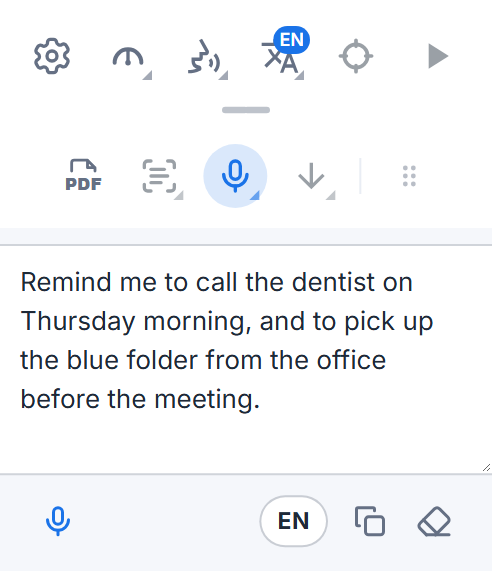
The Dictate button, a microphone, sits in the toolbar’s second row, between Snip & read and Save. Open that row with the small handle under the toolbar and press the microphone. If you dictate often, move it to the top row: press the six-dot grip at the end of the second row and drag it up.
Listening starts as soon as its menu opens. Speak normally: a wave in the box rises and falls with your voice, so you can see you are being heard. Press Stop when you are done, and your words appear, ready to edit. While Readalix listens, the microphone button turns red.
The first time: one download
Dictation needs a speech recognition model on your computer. The first time you press the microphone, Readalix offers to download it, with its size on the button. It comes down once; after that, dictation works offline.
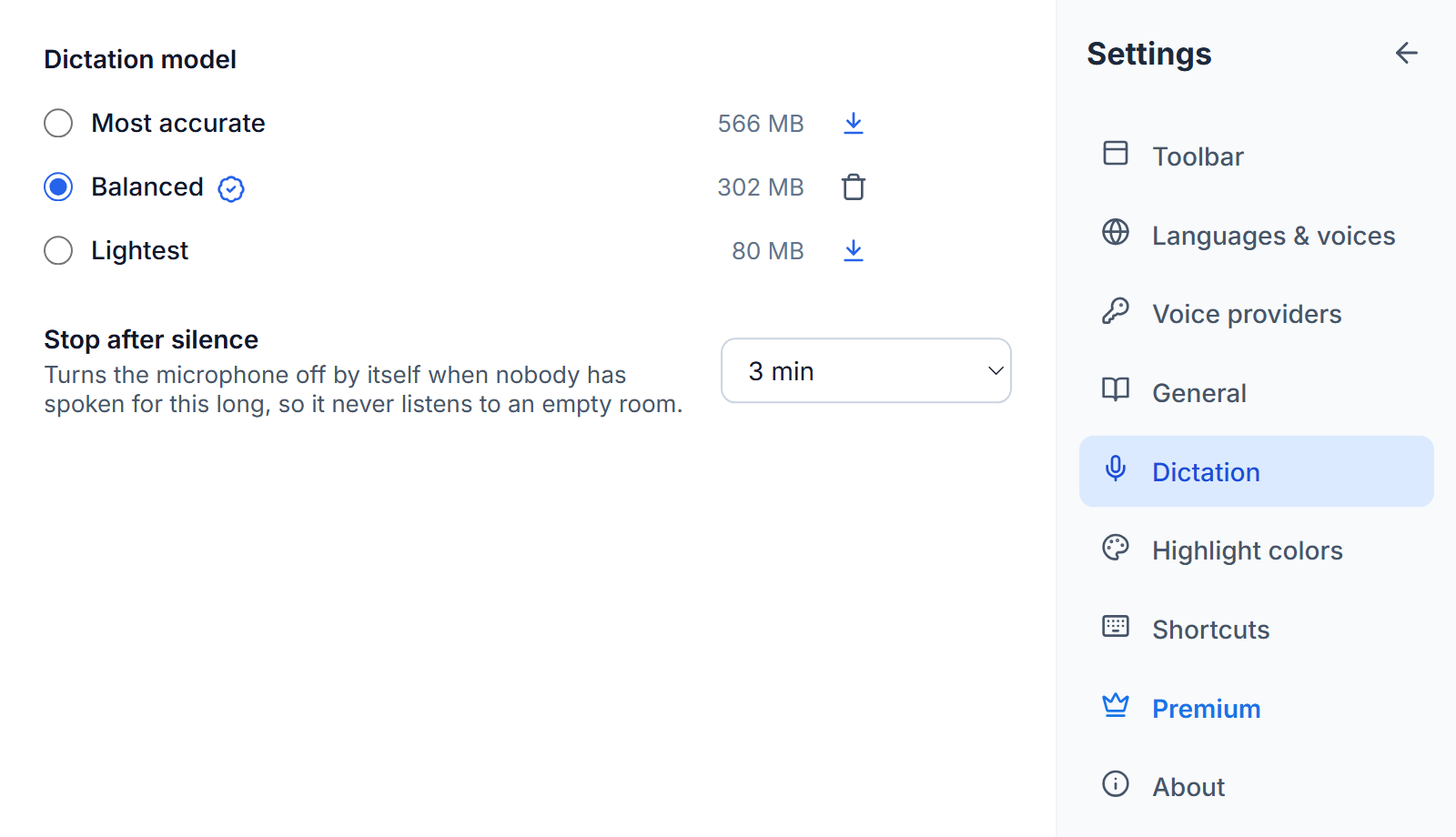
Readalix picks the model that suits your computer, with a quick test of its graphics chip: Lightest (80 MB) runs on any computer, Balanced (302 MB) on most laptops with a recent graphics chip, and Most accurate (566 MB) on computers with a powerful graphics card. If your words ever start to lag behind your voice, Readalix moves to a lighter model on its own and tells you once.
Allow the microphone
The first time, Readalix opens a small page that asks your browser for the microphone. Choose Allow, and the browser will not ask again. The page closes itself and the toolbar opens again, already listening.
If the microphone was blocked, the toolbar says so and offers How to allow: it opens your browser’s settings for Readalix, where you set Microphone to Allow, then press Try again. Windows and macOS also have their own microphone switch in their privacy settings; if your computer blocks the browser there, Readalix tells you that instead.
Edit, copy and clear
When you press Stop, the words become editable: fix a word or add a line, then press Copy and paste them wherever you need them. Clear empties the box, and the microphone under it starts listening again and adds to what is there.
Your words stay in the toolbar until you clear them or close the browser, so closing the toolbar loses nothing. It does not stop dictation either: Readalix keeps listening, with a red microphone on its toolbar icon to show it, and reopening the toolbar brings back the wave and its Stop.
Write down an audio file
Drag a recording, such as a voice memo or a video, onto the dictation box and drop it there. Readalix writes down what is said in it, in the dictation language, the same way it writes your words after Stop. If the microphone was on, it turns off, and its words come first. Like your voice, the file never leaves your computer.
Models and language
Settings → Dictation lists the three models. The one that suits your computer is picked for you and carries a badge: click it to see why that model fits. Choose another to use it instead. Each model has its own button beside its size, to download it, cancel a download under way, or remove it to give its space back. Stop after silence turns the microphone off by itself when nobody has spoken for a while, so it never listens to an empty room: three minutes unless you choose 1, 5, 10 or 30 minutes, or Never.
Readalix listens for the language it speaks to you in. To dictate in another, press the language button beside Copy and Clear (it shows the language’s code, such as EN) and pick yours from the list; the languages you used last stay at the top. Pick it before you start: the button rests while Readalix listens and while it writes your last words. Detect automatically, at the bottom of the list, guesses the language as you speak, which works best for long sentences in a widely spoken language.
Private by design
Your voice is turned into text on your own computer, by Whisper, the open speech recognition model from OpenAI. No sound and no words leave your browser, nothing is saved, and there is no account. The only thing downloaded is the model itself, once.
Dictation works in Chrome and Microsoft Edge.