Saving audio and video
The same text play would read, written to a file instead: audio for the commute, or a video with the words lighting up for a post or a lesson.
Open the save tool
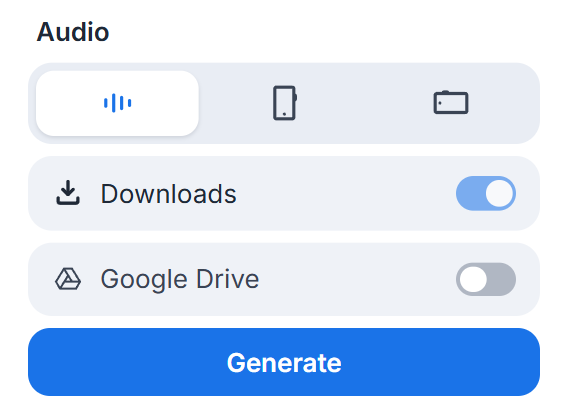
The save button waits in the toolbar’s second row, behind the small handle, unless you have moved it to the top. Pressing it opens a small card rather than starting anything: you choose the shape of the file first, then press Generate.
Every button is always there, in one row or the other. If you save often, drag this one onto the top row, as Settings, Toolbar describes.
What gets saved
Exactly what pressing play would have read, including with nothing selected: the article Readalix finds on the page, the passage you selected, the whole PDF, the whole Google Doc.
It is written in the voice, language and speed showing in your toolbar at the moment you press Generate. There is no second voice picker, because there is no second answer to give. A few voices cannot produce a file at all: a browser voice hands out no audio to save, a local voice that has not been downloaded has nothing to run, and a cloud voice with no key cannot be reached. In those cases the file is written with the best Microsoft voice for the language instead, and the card says so behind a small information glyph.
Audio or video
- AudioAn MP3 or an M4A, depending on the voice that made it. Both play anywhere.
- Video, tall1080 by 1920, the shape a phone holds. This is the default video.
- Video, wideThe shape a screen holds, for a slide or a YouTube upload.
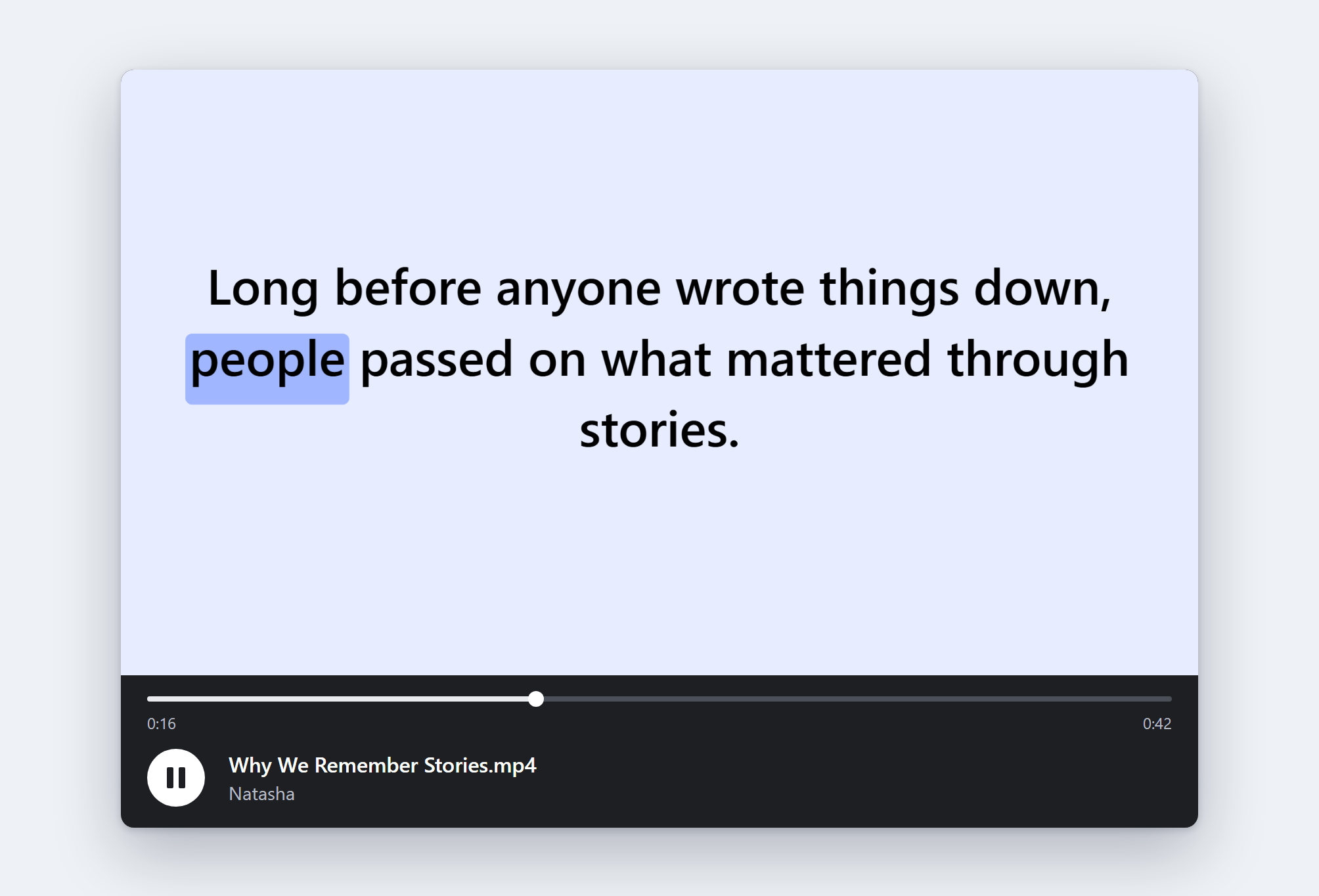
A video shows one sentence per screen, with the spoken word marked in your own highlight colours. Text stays at full size throughout: a sentence too long for one screen turns a page at a word boundary rather than shrinking to fit. Arabic, Hebrew, Farsi and Urdu are laid out right to left.
Where it lands
A switch per destination: your downloads folder, Google Drive, or both. Turning the Drive switch on is what connects a Google account, and files go into a Readalix folder there. Readalix only ever sees the files it put there itself.
While it runs
The job runs in the background, so closing the toolbar does not touch it, and reopening the toolbar shows it mid-flight. A shimmering bar shows how far along it is, under a line that alternates between what it is doing and roughly how long is left; resting on the bar gives the exact figure, and a quiet cross stops it. With the toolbar closed, the Readalix icon spins a download arrow until the job ends.
It is faster than listening: the audio is encoded rather than recorded, at roughly ten times real time, so a twenty minute article takes about two minutes rather than twenty. A live read always takes priority, so starting one while a file is being written just slows the file down.
When it finishes, the file downloads by itself and the card says so for a few seconds before going back to the two buttons.
File names and tags
The file is named from the text where Chrome's on-device model is available, so an article about tern migration is saved under a title that says so. Otherwise it takes the tab's title.
The audio also carries what it was made from: the text itself as lyrics, which a player can show beside the audio, and the name of the voice that read it. The open-licensed Piper voices also carry their licence and a link to the model card that states it.
A few of the open-licensed voices are share-alike: their licence asks that whatever you publish from the file carries that same licence, which nothing written inside the file can promise on your behalf. When one of those is your voice, the card says so behind the same small information glyph before you generate, while picking another voice is still an option.