Highlighting
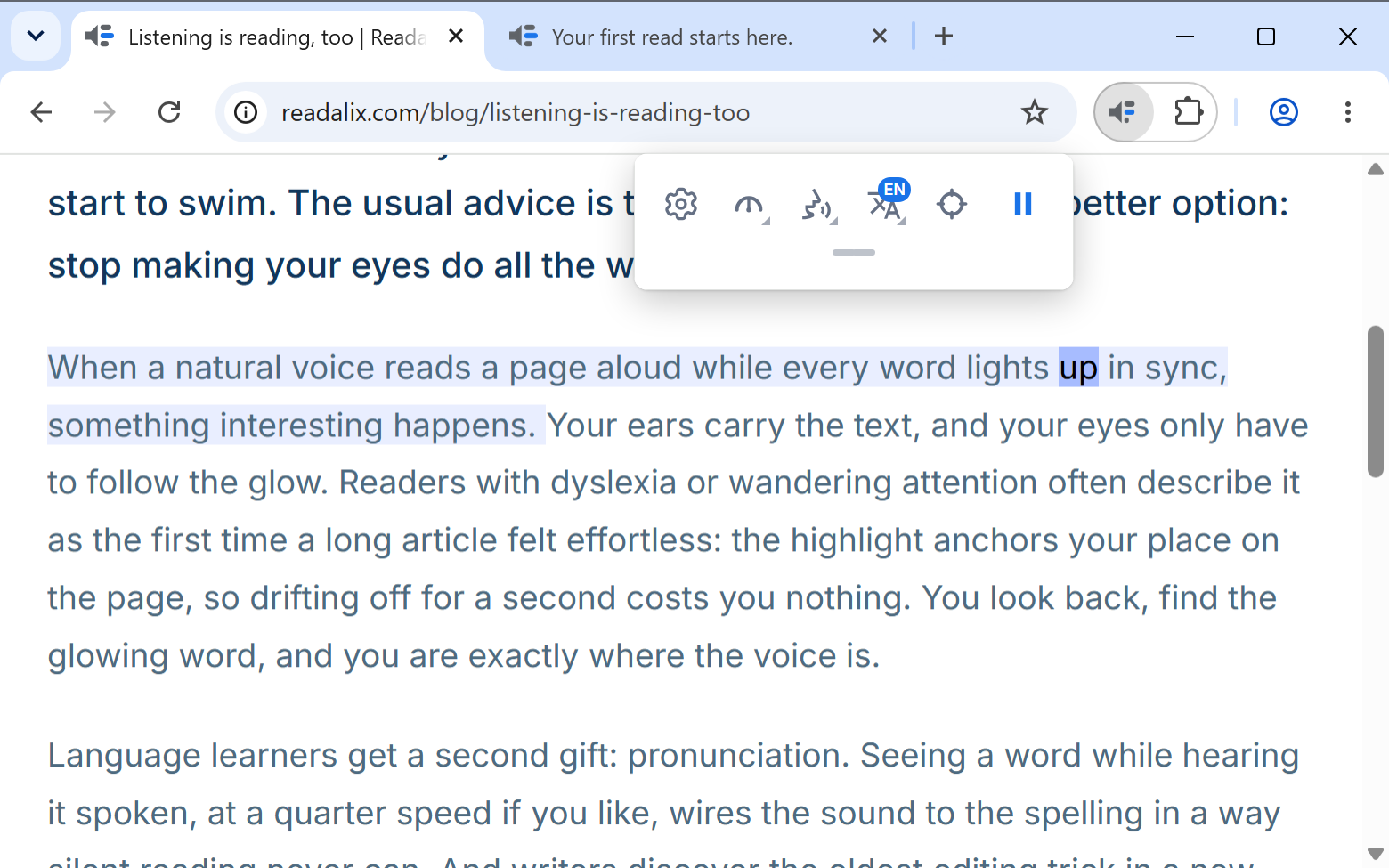
The highlight is the point of the extension: it is what keeps your eyes on the line the voice is on. Both halves of it are yours to shape.
What gets highlighted
Two things at once, and they do different work:
- The sentenceA soft tint across the whole sentence being read. It tells you which line to be on, and it is what you find your way back to after looking away.
- The wordA stronger mark on the word being spoken right now. It is the thing that pulls the eye along at the speed of the voice.
A sentence that never reaches a full stop (a transcript, a chat log, a PDF that lost its punctuation) is cut into pieces at its commas and clauses rather than tinted whole, so the sentence colour never covers half a paragraph and the voice pauses where you would.
Both are painted with the browser's own highlight mechanism rather than by rewriting the page, so links stay links, the layout never shifts, and copying text still copies clean text.
Turn either half off
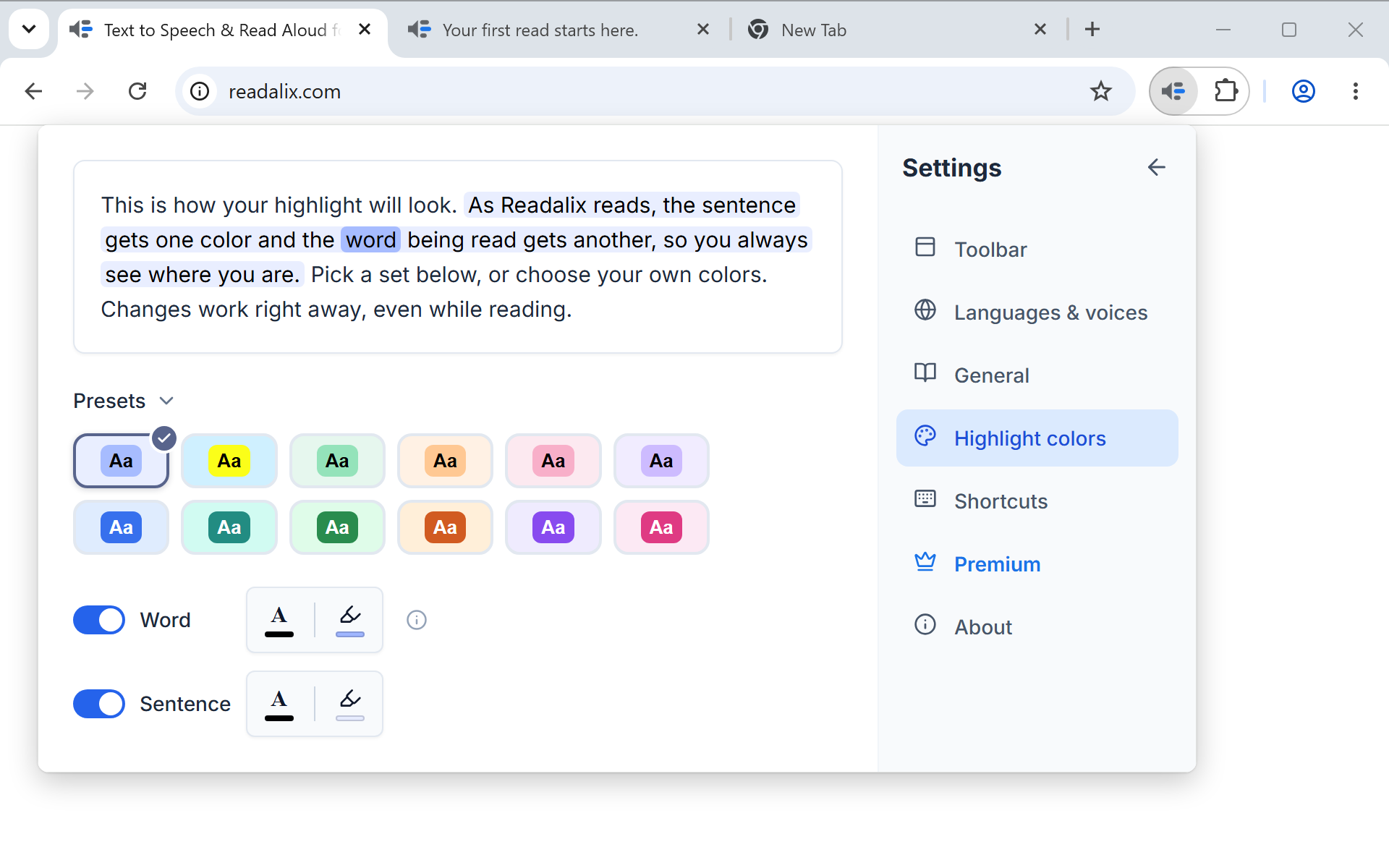
In Settings, then Highlight colors, the word and the sentence each have a switch of their own. Turn the word off if the moving mark distracts you and you only want the line. Turn the sentence off if you want the word alone. Turning both off means a read highlights nothing at all, which is a legitimate way to listen with the screen ignored. Chrome’s built-in PDF viewer can only show one mark at a time, so there it follows whichever switch is on: the word if you left the word on, otherwise the sentence, held lit until the next one begins.
The twelve colour sets
The panel offers twelve ready-made sets as tiles. Each tile is a small drawing of what it does: the tile's background is the sentence tint, the pill inside it is the word tint, and the letters inside the pill are the word's text colour. So a tile shows all three colours before you pick it.
Six of them are pale sets with black text, for people who find strong colour tiring. Six are bold sets with white text on a saturated word, for maximum contrast. The first tile is the default set, and clicking it puts everything back.
Your own colours
Under the sets, the word and the sentence each get a line with two swatches: the text colour and the background colour. Click a swatch to open your system colour picker, and the preview at the top of the panel updates as you drag.
Two things worth knowing when you choose your own:
- The tints are semi-transparentOne set of colours therefore works on light and dark pages both, instead of needing a pair.
- Leaving the sentence text colour aloneMeans the sentence keeps the page's own text colour, which is usually what you want. Set it, and every sentence you read is forced to that colour.
Changes apply mid-read
There is no save button anywhere in the settings, and colours are no exception: a change is applied to the read already running. That makes the panel a comparison tool. Start a long article, leave the settings open, and try sets until one of them stops making you work.
If you are picking for dyslexia or focus: try a pale set first, and turn the word highlight on with the sentence tint kept faint. The contrast between the two is what carries your eye. A bold set with white word text does the same job harder, which suits some people and tires others.