Playback controls
Reading aloud is only useful if you can steer it. Everything here works while the voice is speaking, without stopping and starting again.
Pause and resume
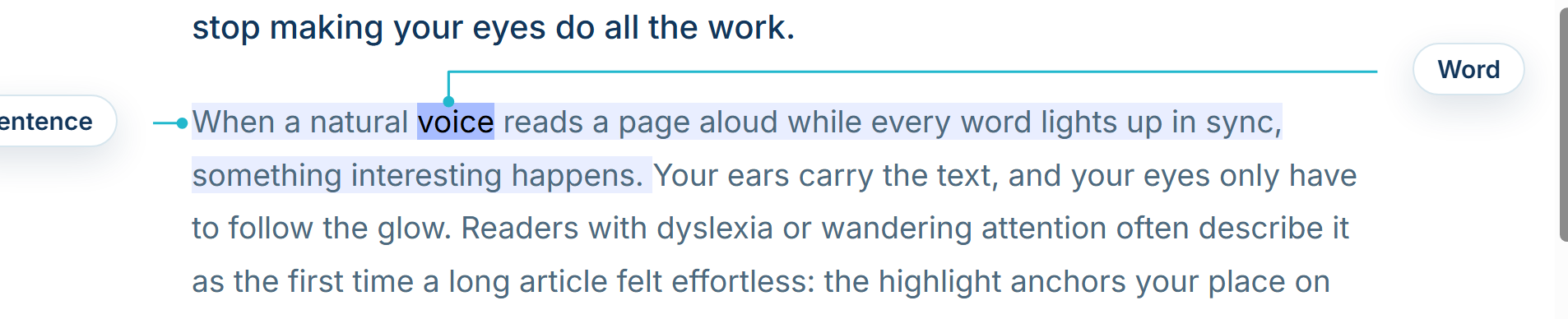
The main button pauses on the exact word being spoken. The highlight freezes there, on screen, so a phone call does not cost you your place. Pressing it again re-speaks the current sentence from that same word, so the voice and the highlight start together.
While paused the button shows a resume icon rather than a plain play triangle, which is how you can tell a paused read from a stopped one at a glance.
Skip a sentence
Press ← and → to step back or forward one sentence. They work from the toolbar and straight from the page with the toolbar closed, and only while that tab is reading, so they do not interfere with scrolling the rest of the time.
- Forward on the last sentenceNothing happens, and the read carries on undisturbed.
- Back on the first sentenceIt replays that sentence from the start.
- Skipping while pausedStarts speaking again, since asking for a sentence is asking to hear it.
The target sentence is highlighted, and scrolled into view, before the voice reaches it, so a skip always looks like it did something even when the voice takes a moment to start.
Reading speed
The speed control is a slider, and takes effect on the next sentence without changing pitch. Its stops depend on the voice:
- Browser voices0.5x, 0.8x, 1x, 1.2x, 1.5x, 2x.
- Piper, Kokoro, Supertonic, Gemini, OpenAI, ElevenLabs and Microsoft voices, and your own voices0.25x, 0.5x, 0.75x, 1x, 1.25x, 1.5x, 2x, 3x.
The toolbar button is a gauge whose needle follows the slider, with 1x pointing straight up, so a glance tells you whether you are above or below normal speed. The slow end is there for language learners, and the fast end for getting through a long article.
Change voice mid-read
Voice, language and speed can all be changed while it is speaking. The change lands at the next sentence boundary rather than cutting the current one off, so switching voice to compare two of them takes about a second and no restart.
Follow the reading
Scroll to follow reading, on in Settings, Reading, keeps the spoken word in view: the page scrolls itself as the voice moves down it. Scroll away yourself and it stops following, so you can read ahead or check something without fighting the page. A small chip then offers to jump back to where the voice is.
Pause after each sentence
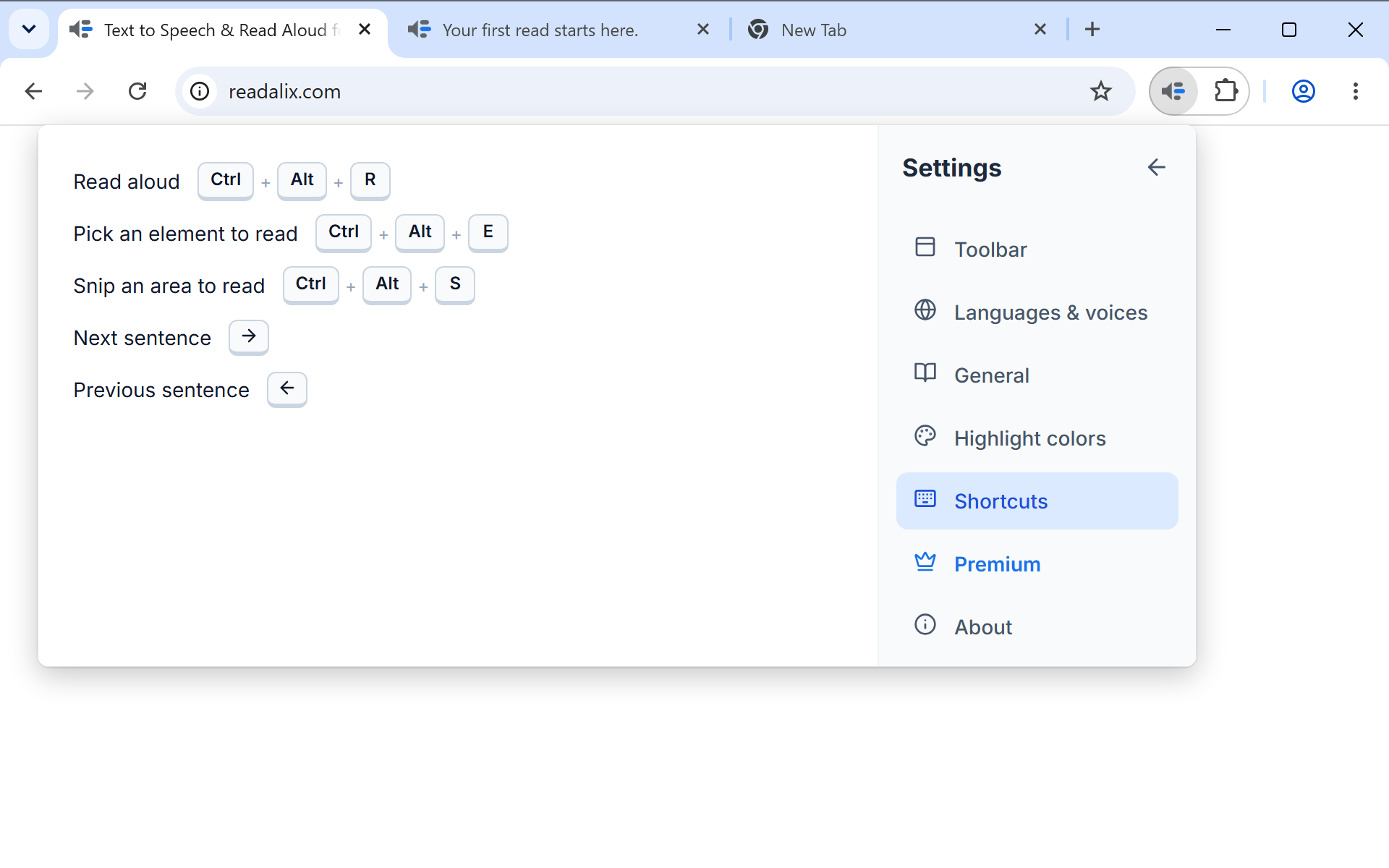
Pause after each sentence, also in Settings, Reading, stops at the end of every sentence and waits for you to press play (or your shortcut) for the next one. It is meant for dictation, transcription practice and shadowing a language, where a continuous read is too fast to work with.
The keyboard shortcuts
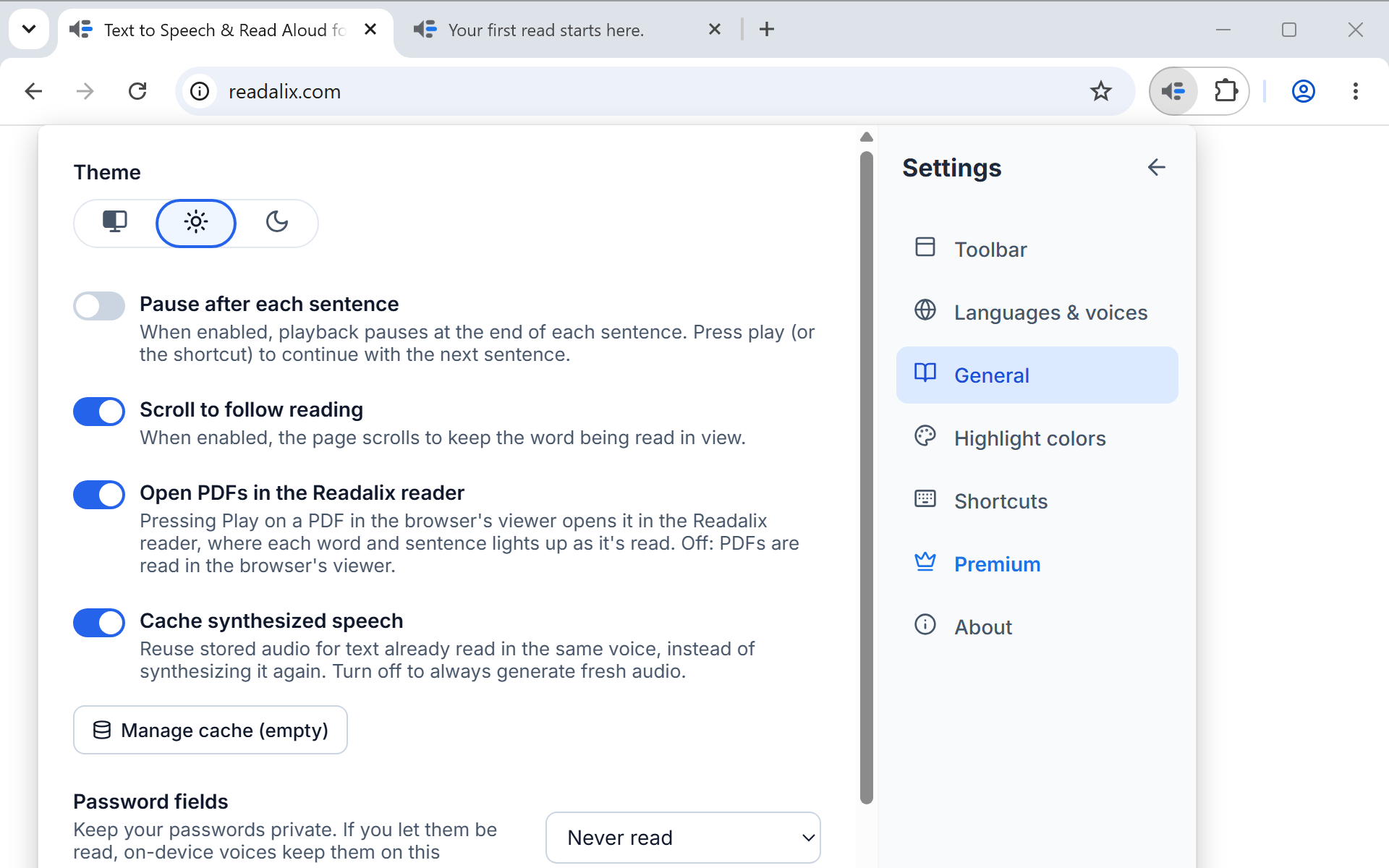
Ctrl+Alt+R starts a read, and pressing it again pauses or resumes, without the toolbar ever being opened. Press it with nothing selected and it does what the play button does: reads the article, the PDF, the current slide.
Four more actions have a key of their own: Ctrl+Alt+E arms the element picker, Ctrl+Alt+S starts Snip & read, and → and ← skip to the next or previous sentence while a read is running.
To change any of them, open Settings, then Shortcuts, press Record on the one you want and type the chord. The rules are short:
- A modifier is required for a letter or a digitOtherwise a plain letter would hijack typing. Keys that type nothing are the exception: F8, an arrow, Home or Page Up on their own are fine, which is why skipping a sentence can be a bare arrow.
- Chords the browser owns are refusedCtrl+T, Ctrl+W, the devtools combos and the tab-switching numbers never reach a page, so the recorder says so and keeps listening.
- Chords that already mean something are allowed, with a warningBind Ctrl+C if you insist, but the note under it will tell you that pages and editors lose copy for as long as it is bound.
Under each one, a link puts it back to its default, and a delete button switches it off entirely if you would rather that action had no key at all.
Stopping
Click the page, or press Esc. Either one ends the read rather than pausing it, and the highlight clears. In Chrome's PDF viewer, clicking the document does the same.