Settings, section by section
The gear at the end of the toolbar opens a full settings view in place. Nothing in it has a save button: every change writes itself and applies to the read already running.
Toolbar
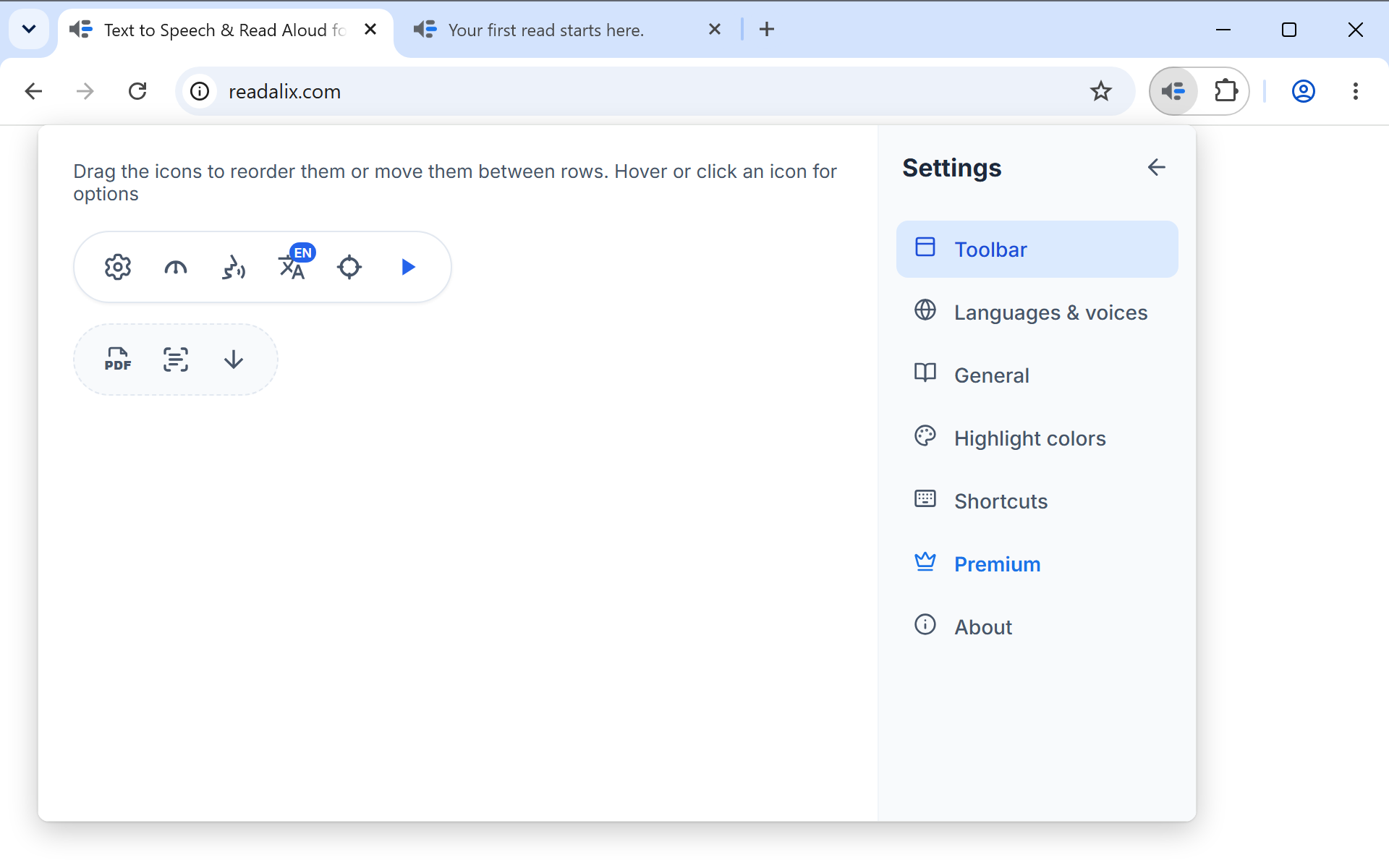
This panel draws both rows of your toolbar, and editing it edits the real one.
- Drag an iconAlong its row, or into the other one. The top row always keeps at least one button, so the toolbar never opens empty. Once something has moved, a reset icon beside the instructions puts every button back where it started.
- Hover or click an iconTo open its options, on the buttons that have some: play, pick, language and Snip & read.
- Run automatically on openOn the play button, this reads the selection the moment the toolbar opens. On the pick button, it arms the picker instead, and on Snip & read it starts a snip. Only one button can have it on, so switching it on for one switches it off for the others.
- Read only the picked elementIn the pick button's options. On, picking or right-clicking an element reads just that element. Off, which is the default, reading carries on from it to the end of the page.
- Language button appearanceIn the language button's options: its code in the corner, its flag in the corner, or the flag on its own.
- Read aloud right awayIn Snip & read’s options. On, which is the default, the words in a box are read as soon as they are found. Off, they wait for you to press play.
You can also arrange the toolbar without opening Settings: the six-dot grip at the end of its second row starts the same editor in place, and the check keeps what you moved.
Languages and voices
One row per language that any source can speak, which is more than eighty of them. Each row carries a switch (does this language appear in the toolbar’s Language menu), a Voices button (its full voice list, by source), and, where Readalix has been translated into that language, a small screen icon that switches the extension’s own interface to it. Pick Arabic, Hebrew, Persian or Urdu and the whole interface lays itself out from the right. The search box matches the native name, the English name or the country.
Voices and languages covers what is behind the Voices button in full: every source, your own voice, downloads, API keys and sample playback.
Reading
- Pause after each sentenceStops at every sentence end and waits for you to ask for the next one. Off by default.
- Scroll to follow readingKeeps the spoken word in view. On by default.
- Cache synthesized speechKeeps the audio of what has been read so re-reading it is instant. On by default.
The audio cache
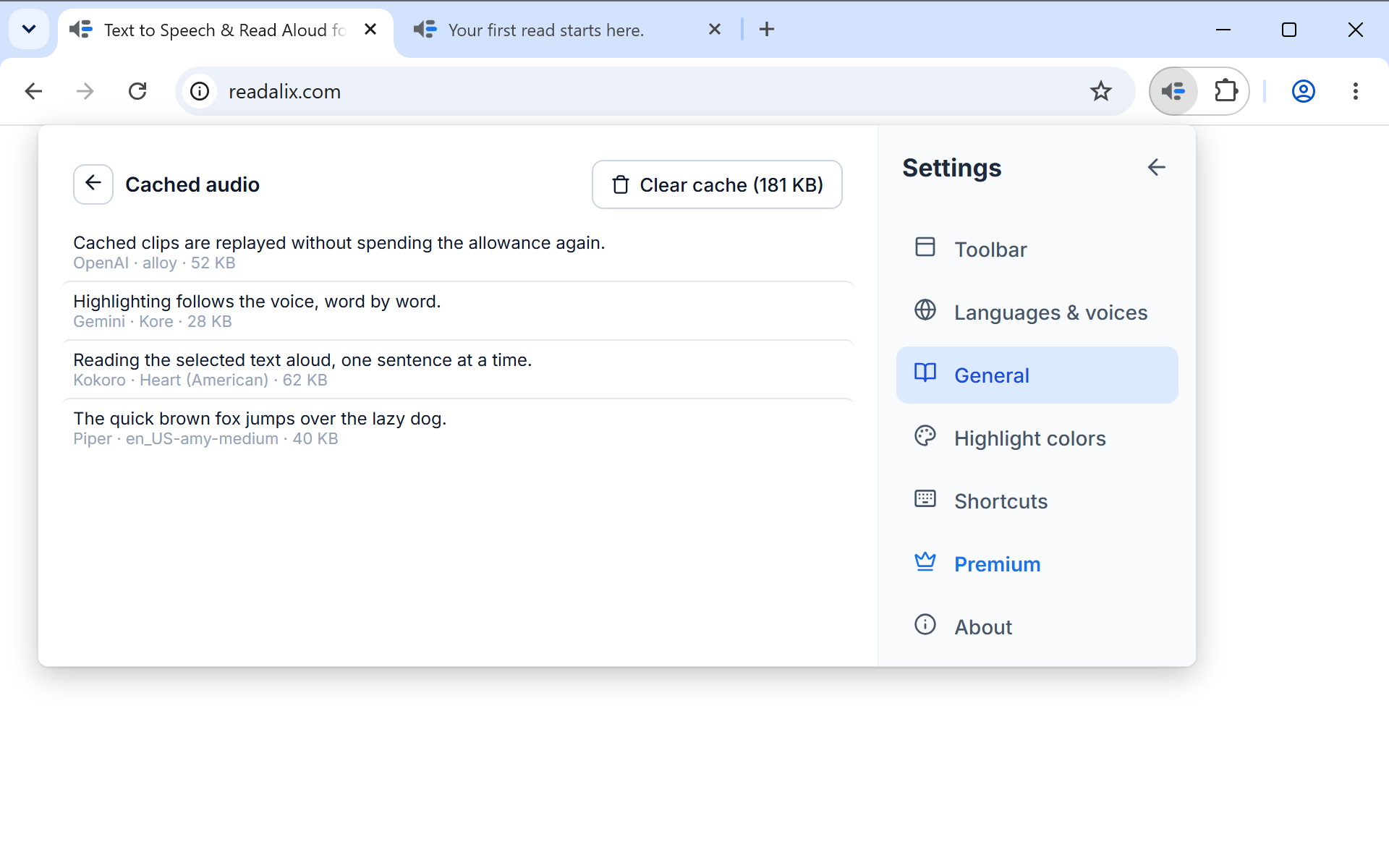
The Manage cache button under those switches carries the size of what is stored, and opens the list itself: one row per clip, newest first, with the start of the text and the voice that read it. Each row can be played, downloaded or deleted, and a button at the top clears the lot.
The cache is capped and drops the least recently used clips on its own, so it does not need minding. It is worth knowing about for two reasons: it makes a second read of the same page instant, and it is where to look if you want the audio of something you have already heard.
Privacy
Two settings under General decide what may be read, and by which voices. They matter because a voice that runs online receives the text it reads, while an on-device voice (Piper, Kokoro, Supertonic, your own voices, or one built into your computer) keeps it on your computer.
- Password fieldsNever read, the default, keeps every password box silent, even one you have revealed with the eye button. On-device voices only lets an on-device voice read it, so it never leaves your computer. Any voice reads it like any other text.
- Private sitesManage sites opens the list. Type a site, such as bank.com, or add the one you are on, and choose what happens there: Readalix off, where nothing starts at all and its PDFs get no reader button, or On-device voices only, where it reads only with a voice that runs on your computer. A rule covers the whole site, every subdomain included.
When a rule stops a read, the toolbar says so and offers the one step that changes it: an on-device voice to pick, or the rule itself. Both settings sync with the rest, so a site you keep private stays private on every computer you sign in to.
Theme
Under General, Theme sets how the toolbar, its menus, Settings and the PDF reader look. System, the default, follows your computer’s light or dark mode. Light and Dark keep one look whatever your computer is set to. An open reader tab changes with it straight away.
Highlight colors
A live preview, twelve ready-made colour sets, and pickers for your own, plus a switch for each half of the highlight. Highlighting is the chapter on this one.
Shortcuts
One row per action: reading, the element picker, Snip & read, and skipping to the next or previous sentence. Each shows its keys as keycaps, with a Record button to change it, a link back to its default, and a delete button to switch it off. The rules for what a chord may be are in Playback controls.
Premium
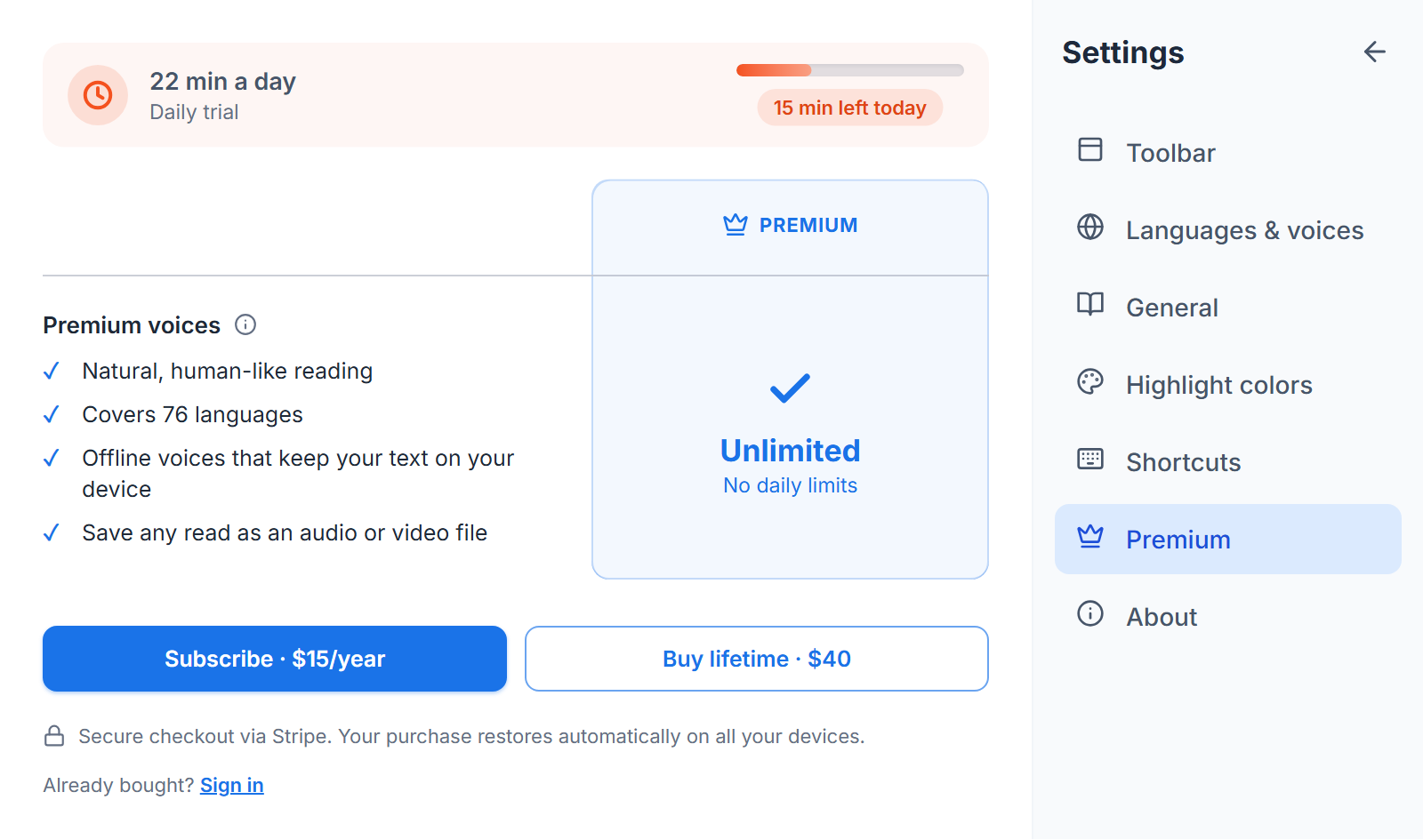
Today's allowance as a meter, what paying removes, and the two prices: $15 a year or $40 once. Browser voices are free and unmetered whatever this section says. Everything else shares 20,000 characters a day, and when that runs out reading continues in a browser voice rather than stopping.
A small banner appears under the toolbar once you have used half the day’s allowance, showing roughly how many minutes are left. It can be dismissed for the day, and it always appears when the allowance runs out, since that is what explains the change of voice. If the allowance runs out on a read you started from a keyboard shortcut or the right-click menu, the toolbar opens by itself once that day, so the change of voice is never unexplained. If no free voice on your device can read your language, the half-way banner says so instead: reading stops when the allowance runs out, so you can decide while there is still time.
When the allowance runs out, that banner also shows both plans with their prices, each going straight to a secure Stripe checkout, and Compare plans opens this section. If you then pick a browser voice yourself to keep reading, the toolbar asks you on a later day, once the allowance is back, whether to switch back to the voice you had. Nothing changes until you answer: press Switch back, or close the message to keep the browser voice.
Once you have paid, this section names the plan you bought instead of the allowance meter, and warns you if a renewal payment fails, while the premium voices still work. A purchase is tied to the browser you bought it in, so on another computer, another Chrome profile or after a reinstall, use Sign in here to restore it with the email address you paid with.
About
A short list of links: readalix.com, the version you are on, which opens the release notes, the user guide, what is new, the privacy policy, the credits for the open-source voice engines with their full licence list, and the support address. Hovering a row shows the address it goes to.
Send feedback
Under those links is a message box. Write what is wrong or what you would like, press Send feedback, and it reaches us. There is no form to fill in and no account to create.
Your extension version, browser and current voice, language and reading speed are attached, so a problem can be reproduced rather than guessed at. Nothing you read is sent, and the page says what rides along before you press Send.
The email field below the message is optional and always starts empty. Fill it in if you would like a reply, leave it blank to stay anonymous. If you have turned usage statistics off in Settings, General, the box is replaced by a note and the email address to write to instead.