Why I switched from Read Aloud to Readalix
Read Aloud was the extension on my toolbar for two years, and it is still the one I recommend to anyone who just wants a page read to them for nothing. What finally moved me off it was not the voices and it was not the price. It was where the highlighting happens: Read Aloud lights up the words in a copy of the text inside its own popup, and I wanted them lit up on the page I was actually looking at.
Fair warning before the comparison, because you should know who is talking: I ended up building Readalix, so I am the last person you should take an opinion from. Take the facts instead. Every number and behaviour below about Read Aloud comes from its Chrome Web Store listing, its own premium page and its source code, all three of which are public, and the note under the table says when I read them. If something has changed by the time you get here, you can check it yourself in about a minute.
 Readalix Lights up the words in your page. No account. $40 once.
 Read Aloud Lights up the words in its own popup. Free, open source, 5 million users.
What Read Aloud gets right
It is worth being straight about why five million people use it, because most of those reasons still hold and none of them are accidents.
- It is properly free.Your browser’s own voices cost nothing, there is no trial to start, no card to enter and no upsell in the way of the play button. For an enormous number of people that is the entire requirement, and Read Aloud has been meeting it since long before natural voices were something you could have in a browser.
- It is open source.The whole extension is on GitHub as ken107/read-aloud, which is how I was able to check the claims in this article instead of guessing at them. Readalix is not open source, and that is a genuine point in Read Aloud’s favour rather than a footnote I am trying to bury in the middle of a paragraph.
- It reads places nothing else bothers with.Google Play Books, Amazon Kindle, and EPUB files through the separate EPUBReader extension. Its source carries hand-written handlers for Khan Academy, Chegg, Pearson, VitalSource, Libby and a string of other textbook and courseware sites. If your reading happens inside a course portal, check Read Aloud first, because it may already know your site by name.
The highlight lives in a popup, not on the page
This is the whole article in one paragraph, so here it is up front. Open Read Aloud’s options and the setting is called Text Highlighting. It offers three choices: turn it off, show it in the popup, or show it in a separate window. There is no fourth choice. The page you are reading is never marked at all.
The default is the popup, so out of the box Read Aloud renders its own copy of the article into a small panel and lights the words up in there. It works, and it is more than most extensions manage. But it means the text you are following and the page you opened are two different objects sitting next to each other, and your eyes have to pick one. I picked the panel, every time, and after a while I noticed I had stopped looking at the article at all. At that point I was not reading a web page. I was reading a teleprompter that happened to have been filled from one.
Readalix has no panel to look at. It tints the current sentence and brightens the spoken word in the page itself, in the article’s own type, at the article’s own size, next to its own images, painted with the browser’s CSS Custom Highlight API. Nothing is copied out and nothing is injected in, so the moment the voice stops the page is exactly as you found it. Select a paragraph halfway down and it starts there, and the highlight walks down the page you were already reading.
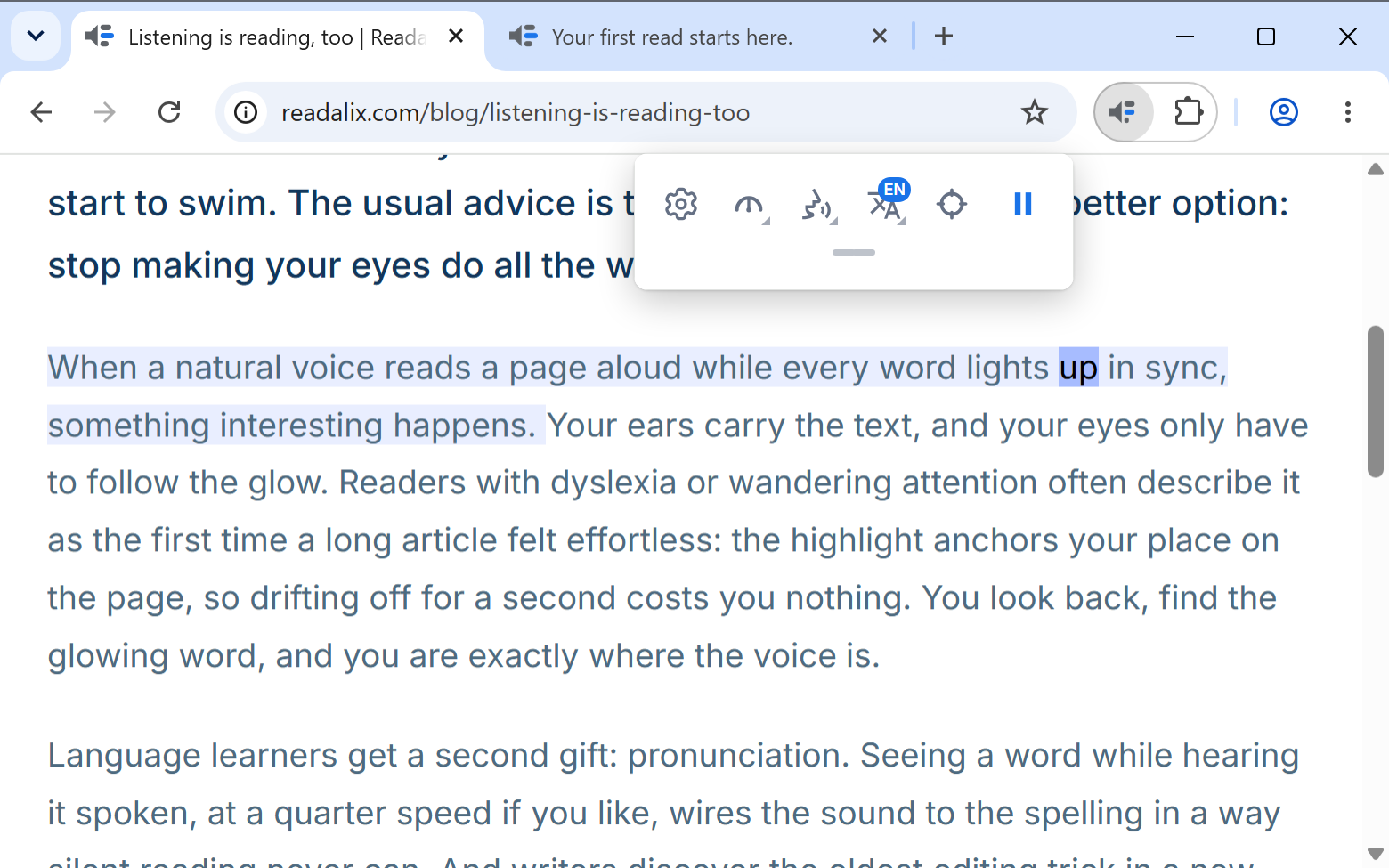
The same principle is why nothing floats up over your page when you select text, either. That has its own article: why Readalix has no floating button.
Readalix and Read Aloud, side by side
The two extensions are chasing slightly different jobs, and the table is where that shows. Read Aloud wants to read you a document wherever that document lives, and it is willing to open the document somewhere else in order to do it. Readalix wants to read the tab you are already in, and refuses to move your text anywhere at all.
| Feature | Readalix | Read Aloud |
|---|---|---|
| Where the highlighting appears | On the page you are reading. The sentence is tinted and the spoken word brightened in the article’s own text | In its own popup, or in a separate window. Besides off, those are the only two settings |
| Highlighting out of the box | On. Word and sentence together, in twelve ready-made colour sets you can change or replace | On, in the popup. The page itself stays unmarked |
| What the free tier gives you | Browser voices with no limit at all, plus 20,000 characters a day of the natural ones, about 22 minutes. Every feature included | Browser voices with no limit, plus 100,000 premium characters a month, reset at the start of each month |
| What the paid tier costs | $40 once, or $15 a year. No limit after that | $1 for 2,000,000 characters, bought as you go |
| Account needed | No. There is no server to have an account on | Not for browser voices. Yes for the premium ones: the character balance belongs to a signed-in account |
| Where the speech is made | On your device with Piper and Kokoro. Cloud voices only if you go and pick one | Browser voices locally. Premium voices on its own servers, where the audio is cached for an hour |
| Voices | 100+ Piper voices in 30+ languages, 28 Kokoro voices, 322 Microsoft neural voices with no key, every voice your system already has, and Gemini or OpenAI with your own key | Your browser’s own voices, plus Google Wavenet, Amazon Polly, IBM Watson, Microsoft Azure and OpenAI through the in-app purchase or your own API key |
| PDFs | Read in Chrome’s own PDF viewer, in the tab the file is already open in. The viewer draws the highlight itself, so it stays on the word at any zoom | Opened in Read Aloud’s own PDF viewer, hosted on assets.lsdsoftware.com |
| What it can read | Web pages, Chrome’s PDF viewer, Google Docs, Word Online, PowerPoint Online, Google Slides, form fields, iframes and shadow DOM | Web pages, PDFs, Google Docs, Google Slides, OneDrive documents, Google Play Books, Amazon Kindle, and EPUB through the separate EPUBReader extension |
| Reading with no internet | Yes, once a Piper or Kokoro voice is downloaded. The synthesis happens inside the extension | Browser voices work offline. The premium voices are synthesized on its servers |
| Open source | No. The extension is closed; the local voice models it runs, Piper and Kokoro, are open | Yes, on GitHub. A real advantage, and how the claims in this table were checked |
| Where it runs | Chrome on the desktop, and that is all | Chrome and Firefox |
Read Aloud’s figures above were read off its Chrome Web Store listing (version 2.24.0, 5,000,000 users, 4.1 stars from 3.6K ratings), its premium-voices page and its public source in September 2026, and any of them may have moved since. All three are open, so check them before you decide anything on the strength of ours.
Six things that changed in the first week
None of these was the reason I switched. They are what I noticed once I had, which is a more useful list.
- I stopped losing my place.The word lights up where my eyes already were, so glancing away and back costs nothing: you look for the glow and you are exactly where the voice is. With a popup, looking away means finding your place in the panel and then, if you want the real page again, finding it a second time in the article.
- Pause lands on the word.Press pause and the highlight freezes mid-sentence; press play and it resumes from that exact word rather than restarting the sentence you were most of the way through. Change the voice, the speed or the language while it is talking and the sentence you are in re-speaks from where you are, immediately.
- The good voices stopped costing characters.Piper and Kokoro are synthesized inside the extension on my own hardware, so no meter is running while I read. That is 100+ Piper voices across 30+ languages, and 28 Kokoro voices with exact per-word timing. Once a voice has downloaded it keeps working with the Wi-Fi switched off, on a train or a plane, and nothing about the text I am reading goes anywhere.
- PDFs stopped moving.Readalix reads the PDF in Chrome’s own viewer, in the tab it is already open in, and the viewer draws the highlight itself, so it sits on the word at any zoom, scanned pages included. Read Aloud opens PDFs in a viewer it hosts at assets.lsdsoftware.com. Both of them work. Only one of them leaves your file where it was.
- It reads the box I am typing in.Input fields, text areas and rich-text editors. Right-click inside a half-written reply and it reads back what you wrote, which is still the fastest way to catch a sentence that reads badly. It also reaches text inside iframes and inside shadow DOM, which is where a lot of embedded readers, help widgets and web apps keep their content.
- No panel, no button, no leftovers.Nothing floats up when I select text, nothing slides in over the article, and nothing is bolted onto the site’s markup. There is a small toolbar in the corner when I ask for it, and that is the whole interface. When the voice stops, there is nothing left behind to close.
What each one costs, and what it knows about you
Read Aloud’s premium voices are honestly cheap, and I am not going to pretend otherwise: its own page sells 2,000,000 characters for a dollar and hands you 100,000 free ones every month. Read a few articles a week in a cloud voice and you may never spend anything. The catch is not the price, it is the shape. A character balance has to live somewhere, so it lives on an account, so you sign in, and every word you have heard in a premium voice was sent to a server to be spoken. The store listing says so plainly: it discloses that the extension handles personally identifiable information, authentication information and website content, which is precisely what a signed-in metered service needs in order to work.
Readalix is $40 once, or $15 a year if you would rather rent it, and the free tier is browser voices with no limit plus 20,000 characters a day of the natural ones, roughly 22 minutes, or something like 600,000 characters a month. When the daily allowance runs out the read carries on in a browser voice instead of stopping halfway down a paragraph. There is no account, because there is nothing to have an account on: your settings ride along in Chrome’s own sync, and with a Piper or Kokoro voice selected the text never leaves the browser at all. Cloud voices are there if you want them, and you have to go and choose one.
Where Read Aloud is still the right answer
Four cases, and in all four I would tell you to stay where you are.
- You use Firefox.Read Aloud ships for Chrome and for Firefox. Readalix is a Chrome extension and there is no Firefox build, planned or otherwise. If your browser is Firefox, this comparison ends here and Read Aloud wins it.
- You read books, not pages.Google Play Books, Amazon Kindle and EPUB files, the last through the separate EPUBReader extension. Read Aloud handles all three. Readalix reads none of them, and reading a book is a genuinely different job from reading a page.
- You read inside a course platform.Khan Academy, Chegg, Pearson, VitalSource, Libby and a run of other textbook and courseware sites have hand-written handlers in Read Aloud’s source. If yours is one of them, that is real work somebody did on your behalf, and Readalix has not done it.
- You want to read the code.Read Aloud is open source and Readalix is not. If being able to audit an extension that sees every page you read is a requirement rather than a preference, then that requirement points away from us, and I am not going to try to talk you out of it.
Outside those four, the question is just whether you want the words lit up in your article or in a panel beside it. That is a preference and not a benchmark, and it is worth two minutes to find out which one you have.
Switching takes about two minutes
There is nothing to export and nothing to import, and the two extensions’ keyboard shortcuts do not collide, so you can leave Read Aloud installed and run both for a week before you decide anything.
- Install it.Readalix is on the Chrome Web Store and needs Chrome 123 or newer. There is no onboarding flow to sit through and no sign-up step to skip.
- Press play.Select a paragraph and hit Ctrl + Alt + R, or right-click and choose Read with Readalix. With nothing selected, the toolbar’s play button finds the article on the page and reads that. Read Aloud’s own shortcuts are Alt + P and its neighbours, so the two never fight over a key.
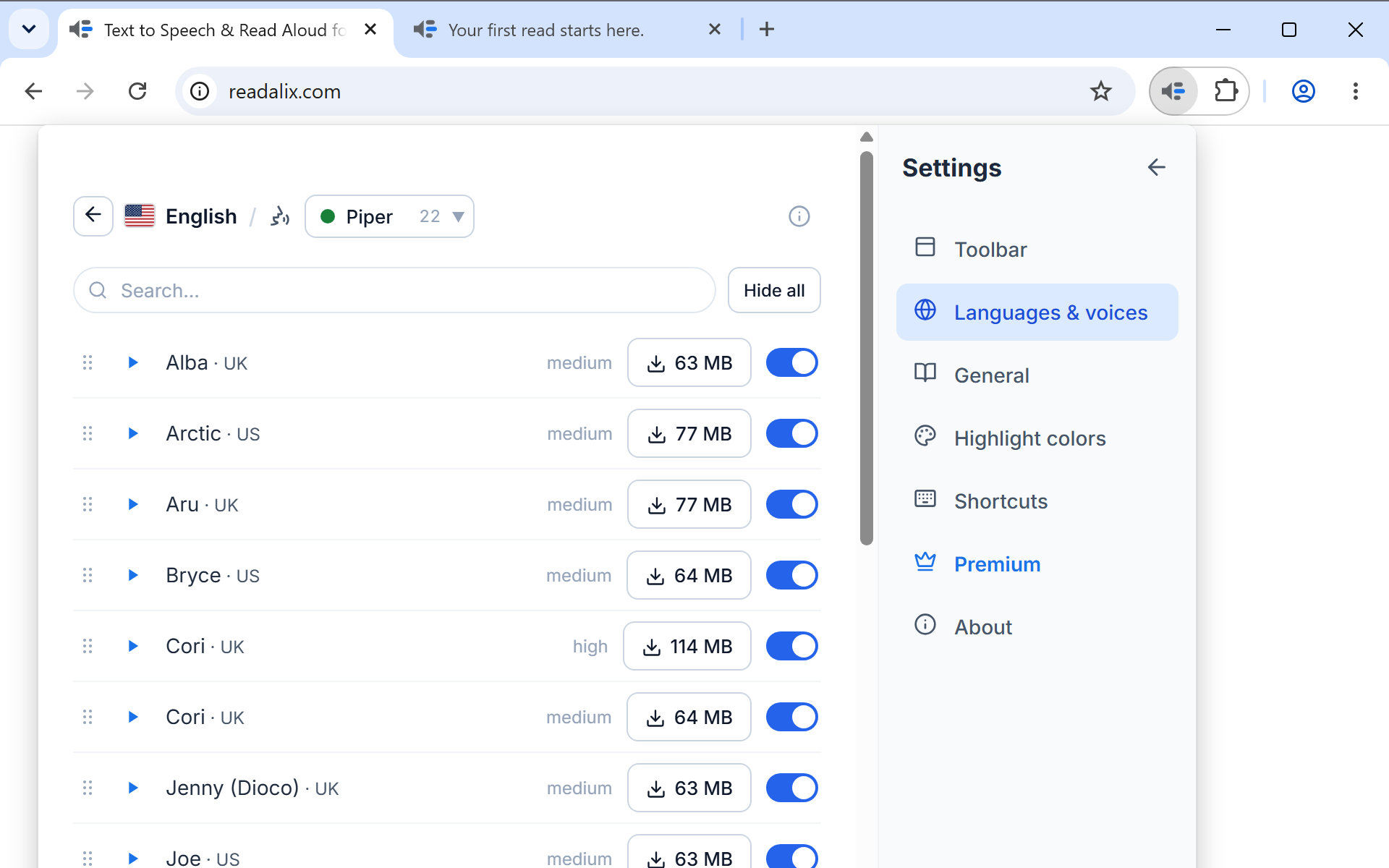
- Pick a real voice.The default is whatever your system already ships with, which is the weakest thing here, exactly as it is in Read Aloud. Open Settings, then Languages & voices, choose your language, then Voices, and try the Microsoft tab (instant, nothing to download, no key) or the Piper tab (a small one-time download, then fully offline).
- Make the highlight yours.This is the part worth five minutes, because it is the part you switched for. Whether the word, the sentence or both are marked, in which colours, and whether the page scrolls along to keep the spoken word in view are all in Settings. Twelve ready-made colour sets are waiting there if you would rather not choose.
Read Aloud is a good, free, open extension with five million users and a 4.1 rating, and none of that is in dispute anywhere in this article. I switched because I wanted the words lit up in the article I opened rather than in a copy of it, and once I had built that I could not go back to the panel. If the popup has never bothered you, you have no reason to move. If you have quietly stopped looking at the page while something reads it to you, that is the thing Readalix fixes.
Hear this page in a natural voice
Readalix is free, needs no account, and its on-device voices never send your text anywhere.
Add to Chrome